How do I connect my domain to a directory on my webspace?
For your domain to display the contents of your website, the website files must be stored on your webspace, and the domain must point to the corresponding directory. The steps vary depending on the system.
Hinweis: Diese Anleitung unterscheidet sich
je nach System (CloudPit oder Controlpanel). Verwenden Sie den passenden
Abschnitt.
If you have not yet uploaded your website to the webspace, these guides will help you:
Table of Contents
- Connect domain to a webspace directory in CloudPit
- Connect domain to a webspace directory in the Controlpanel
Connect domain to a webspace directory in CloudPit
- Log in to CloudPit and open the management of your web hosting package.
- Open Domains.
-
Click Actions next to the desired domain or subdomain.
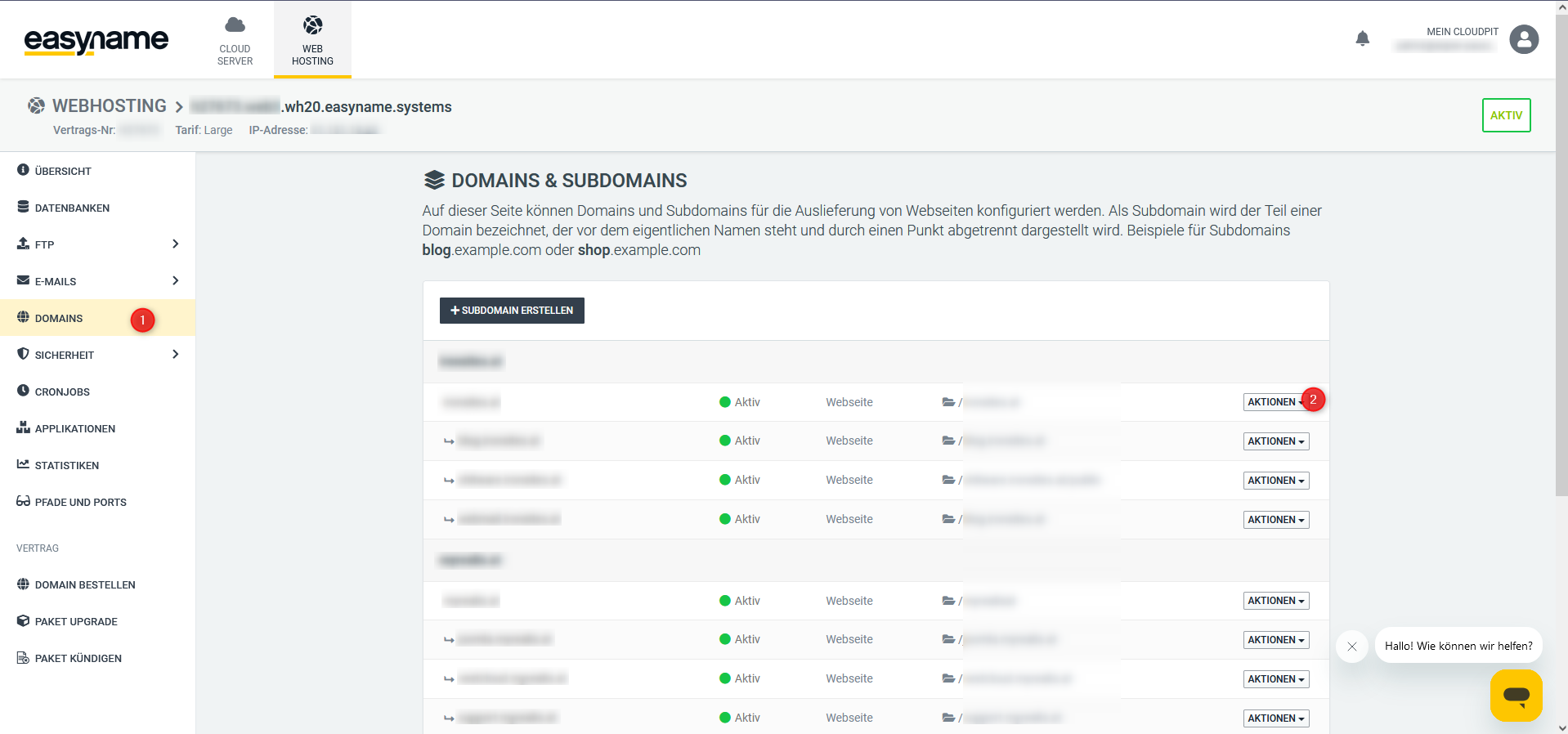
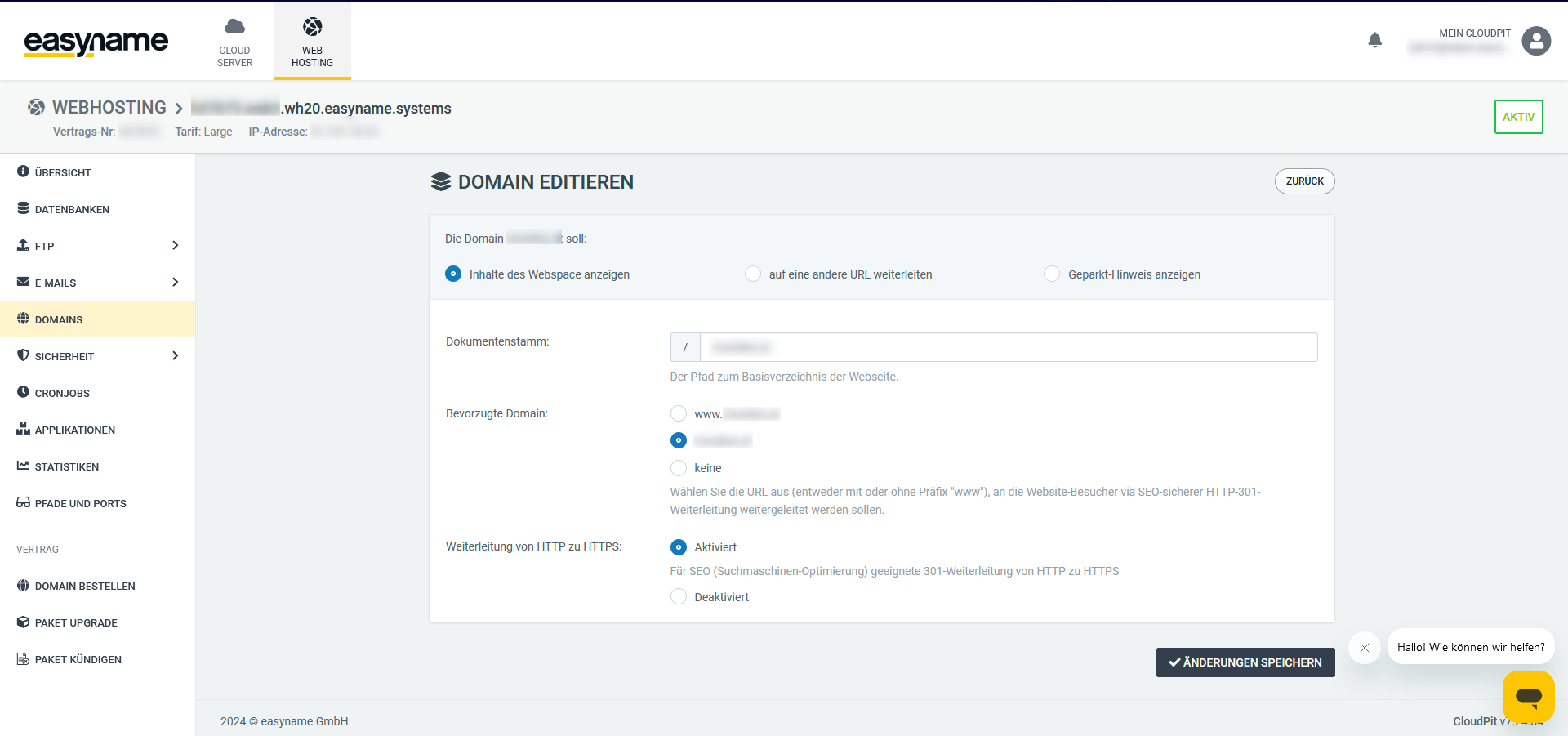
- Select Show webspace content.
-
Enter the full path to the directory where your website contents are located.
Connect domain to a webspace directory in the Controlpanel
- Log in to the Control Panel.
-
Open Domains → Subdomains.

- Click the pencil icon next to the desired subdomain to edit it.
-
Select Show webspace content.

- Enter the directory where your website contents are located under Webspace path. The root directory of your webspace is the folder html.
Note: In the Controlpanel, it may take up to 5 minutes for the change to be fully applied.