How to recognize phishing emails and how to respond correctly?
Phishing emails are fraudulent messages aimed at obtaining your personal data such as passwords or payment information. These emails often appear deceptively genuine and pretend to be from trustworthy senders.
How can you recognize phishing emails?
Pay special attention to the following characteristics in suspicious emails:
- The sender's address is unusual or slightly deviates from the real domain
- Pressure is applied, for example with phrases like "act immediately" or "account will be blocked"
- You are asked to click on a link or enter personal data
- The email contains unexpected attachments
How to recognize genuine emails from easyname
Official emails from easyname can be recognized by the following points:
- The sender's address always ends with @easyname.com, for example no-reply@easyname.com
- You will not be asked to send sensitive data directly via email
- Actions are always carried out through your customer account and not via direct links in emails
What should you do in case of suspicion?
If you have received a suspicious email:
- Do not open any links and do not download any attachments
- Do not enter any personal data
- Delete the email or mark it as spam
Forward email for review
To analyze the source of the email and take action, you can forward the message to us for review.
Ideally, send us the email as a .eml file or with the complete email header. This allows us to analyze the sender more precisely and, if necessary, have it blocked.
Outlook for Mac
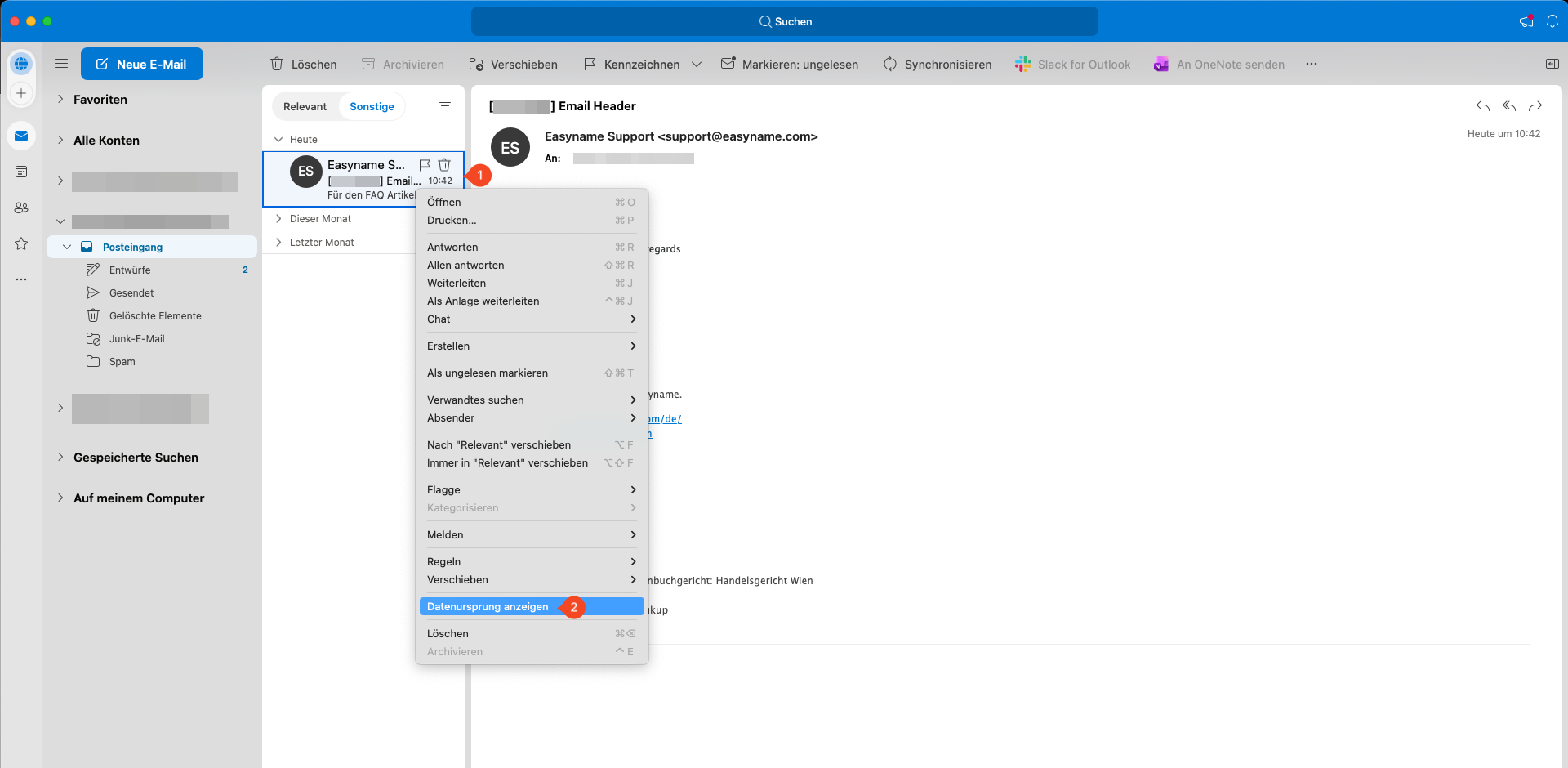
Show email header
Right-click on the affected email (1) and select View Source (2).
A new window will display the full email header. Copy it and forward it to us for analysis.
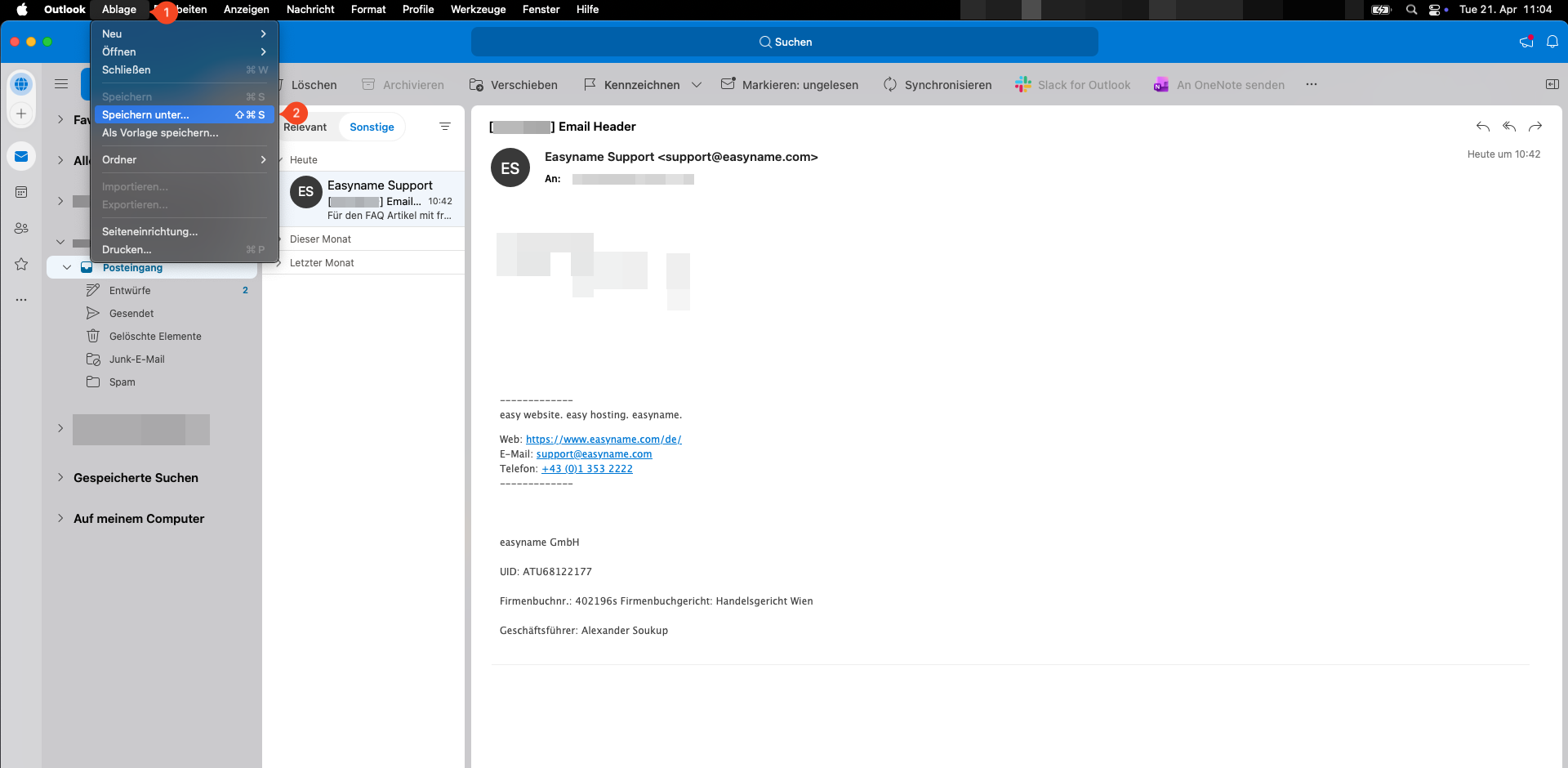
Save email as .eml file
Open the email and click at the top left on File (1) and then on Save As… (2).
Save the email as Email Message (.eml) and send this file to support@easyname.com.

Outlook for Windows
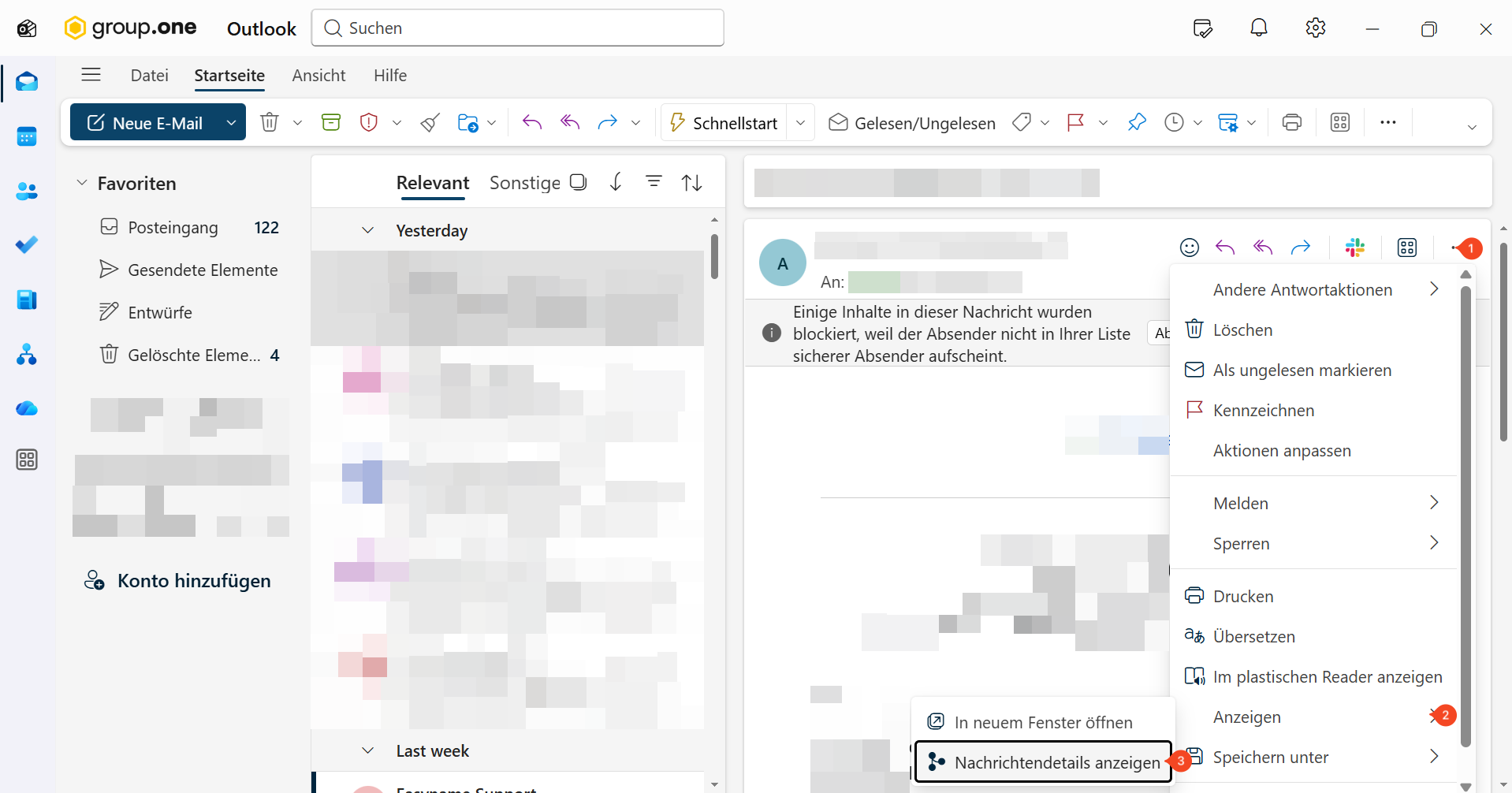
Show email header
Open the affected email. Click on the three dots at the top right (1) and select View (2). Then click on View message details (3).
The full email header will be displayed in a new window and can be copied and forwarded from there.
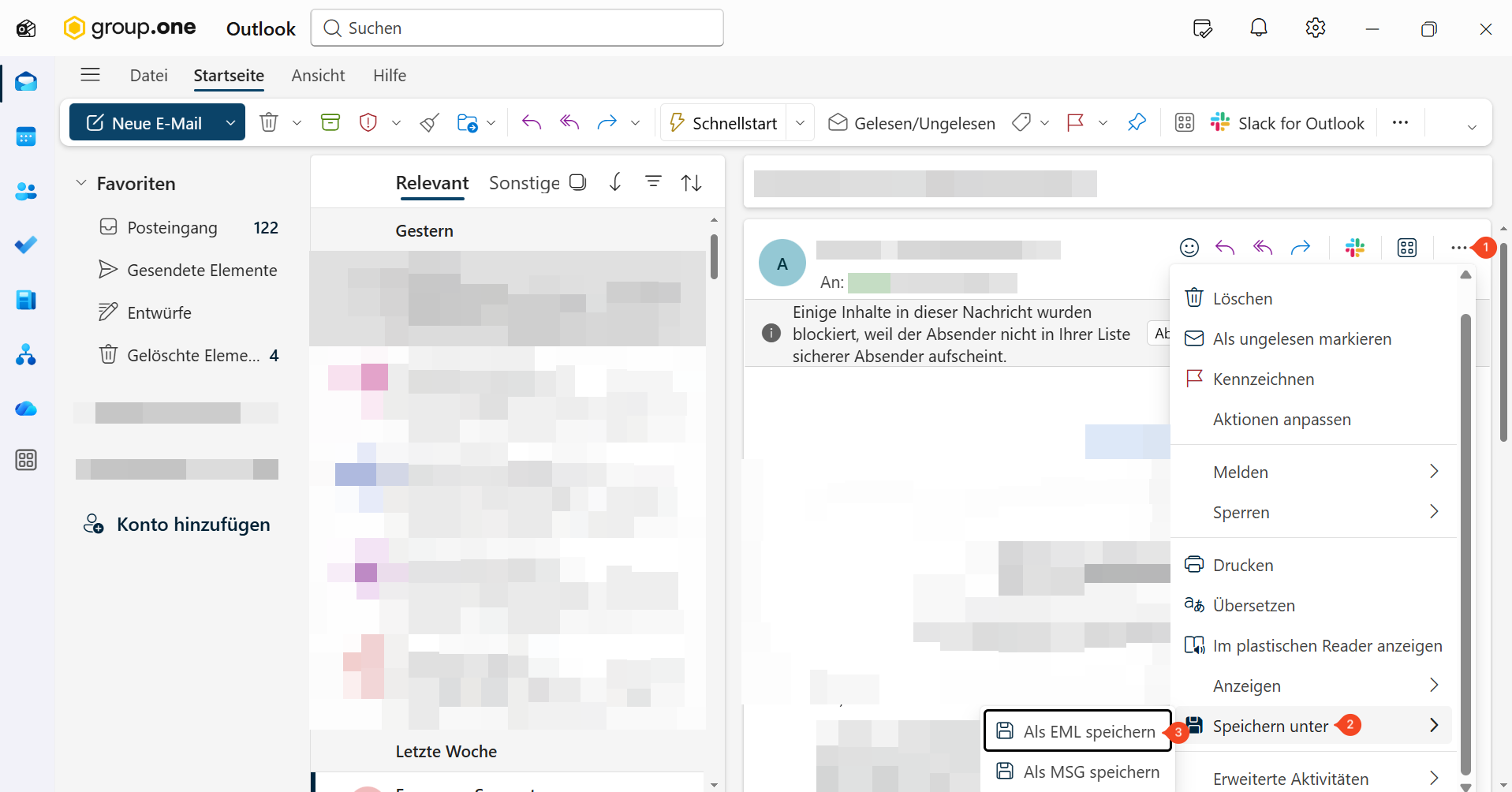
Save email as .eml file
Open the menu again via the three dots (1) and select Save As (2).
Save the email as a .eml file (3) and then send it to support@easyname.com.
Apple Mail
Show email header
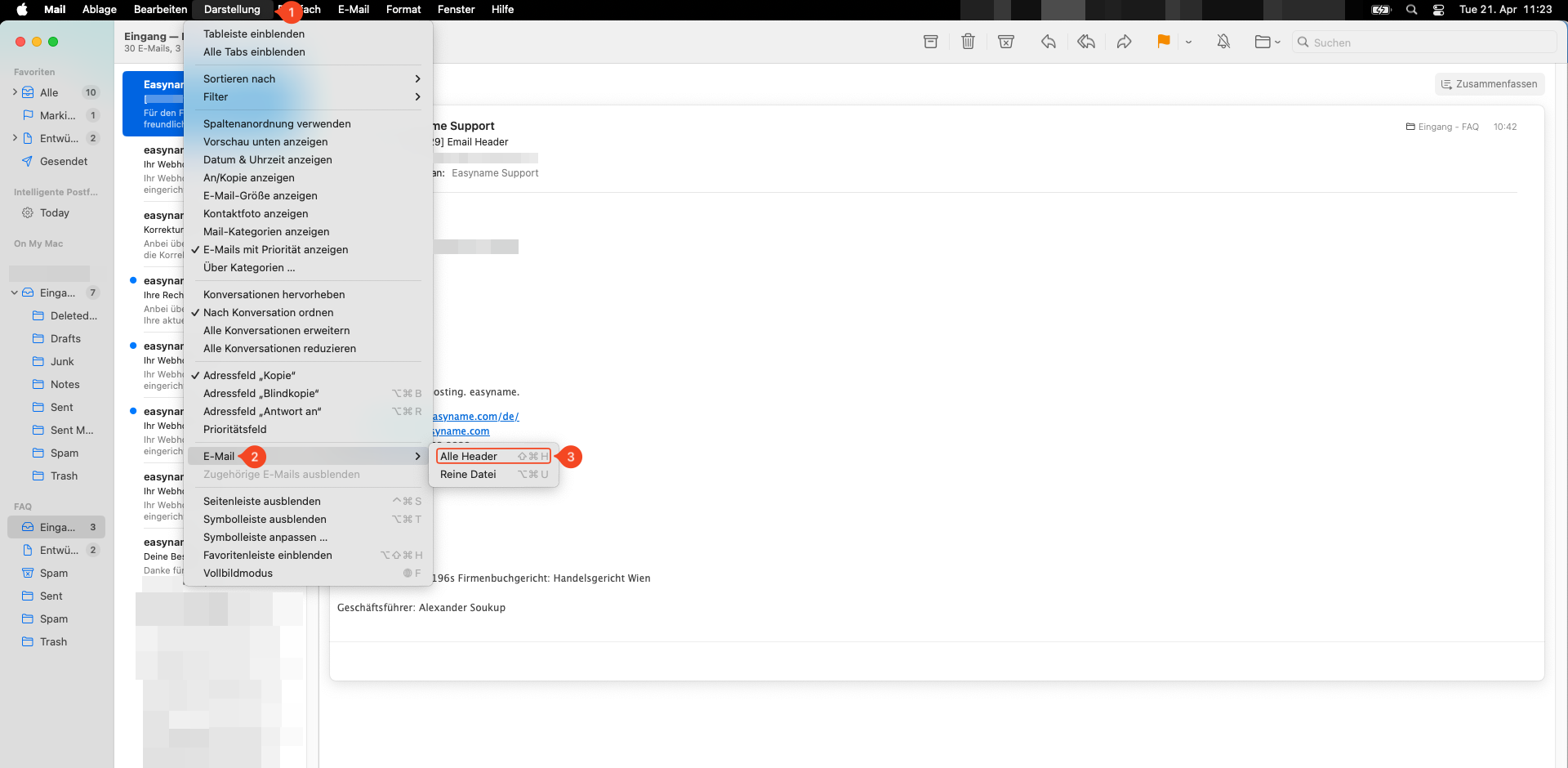
Select the affected email. Click at the top on View (1) and then on Message (2) > All Headers.
Alternatively, you can use the keyboard shortcut Shift + Command + H.
The full email header will be displayed and can be forwarded.
Save email as .eml file
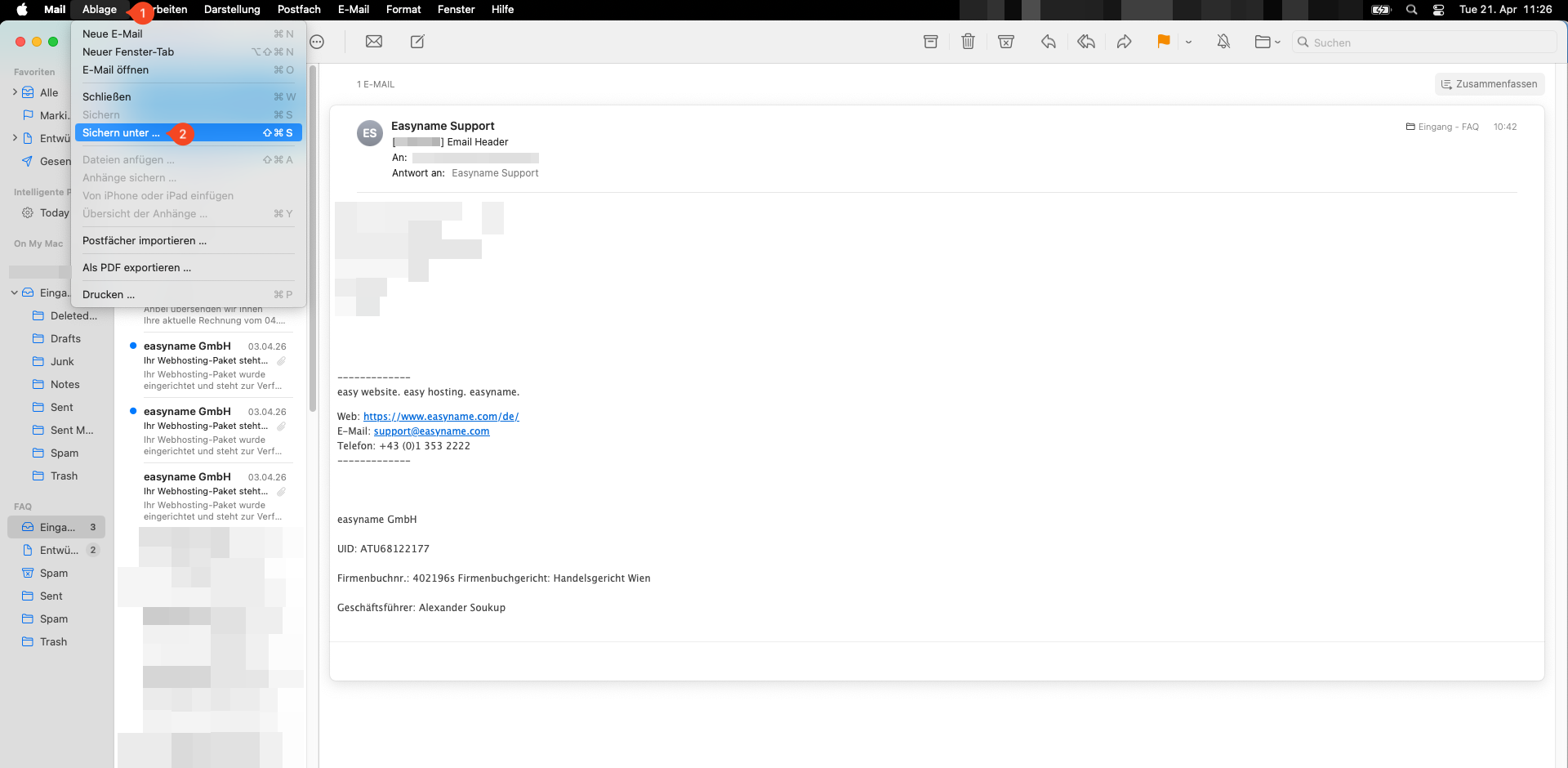
Select the affected email and click at the top on File (1) > Save As… (2).
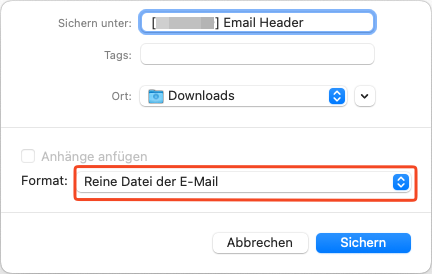
Choose the format Raw Message Source and save the file. Then send it to support@easyname.com.
Thunderbird
In Thunderbird, you can also save suspicious emails as a .eml file or display the full email header.
Open the email and choose the option in the menu to view the message source or to save the message.
Additional note
If you are unsure whether an email is genuine, always log in directly to your customer account via the official website instead of using a link from the email.