How do I change my PHP version?
Basically, each of our web hosting packages provides access to different PHP versions. This article explains how you can adjust the PHP version of your website.
Depending on whether you manage your web hosting in our new CloudPit or in the Control Panel, you will find the settings for this in different ways.
!!! WARNING !!!
!!! WARNING !!!
Table of Contents
1. I manage my web hosting in CloudPit
2. I manage my web hosting in the Control Panel
1. I manage my web hosting in CloudPit
General information about navigation in CloudPit can be found in the following FAQ article: --> Where do I find... in CloudPit?
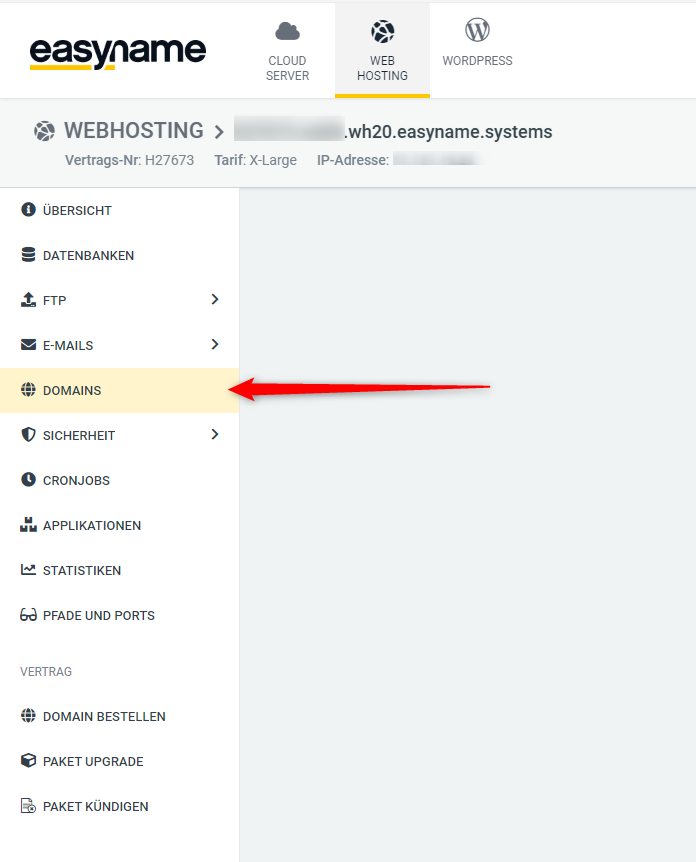
Click on [Domains] in the left menu bar of the web hosting menu to open the menu for domains & subdomains.
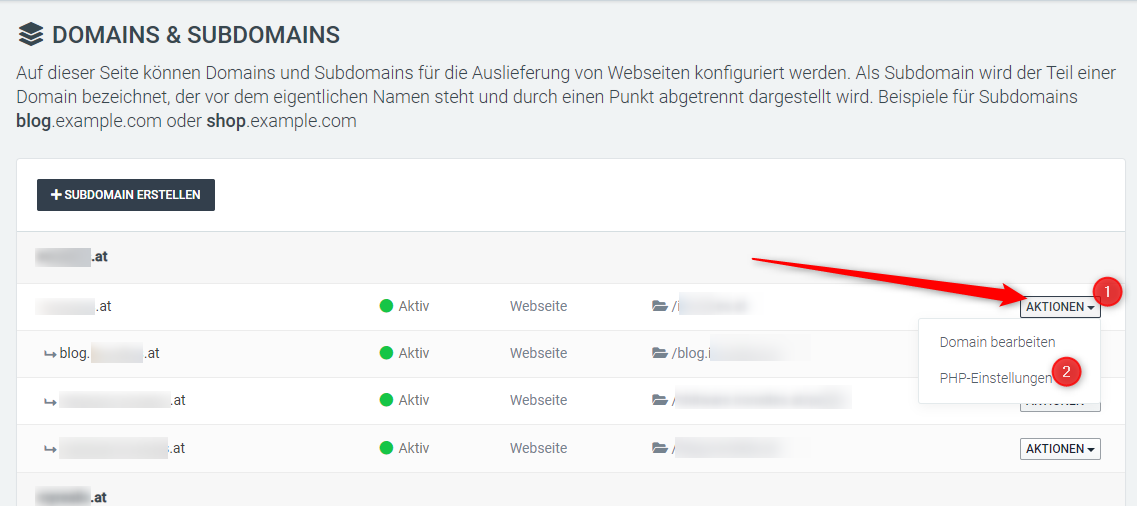
Click the [ACTIONS] button next to the desired (sub)domain and select [PHP Settings] from the context menu.
Please note that there is no option to manage the default PHP version and each subdomain must be edited separately.
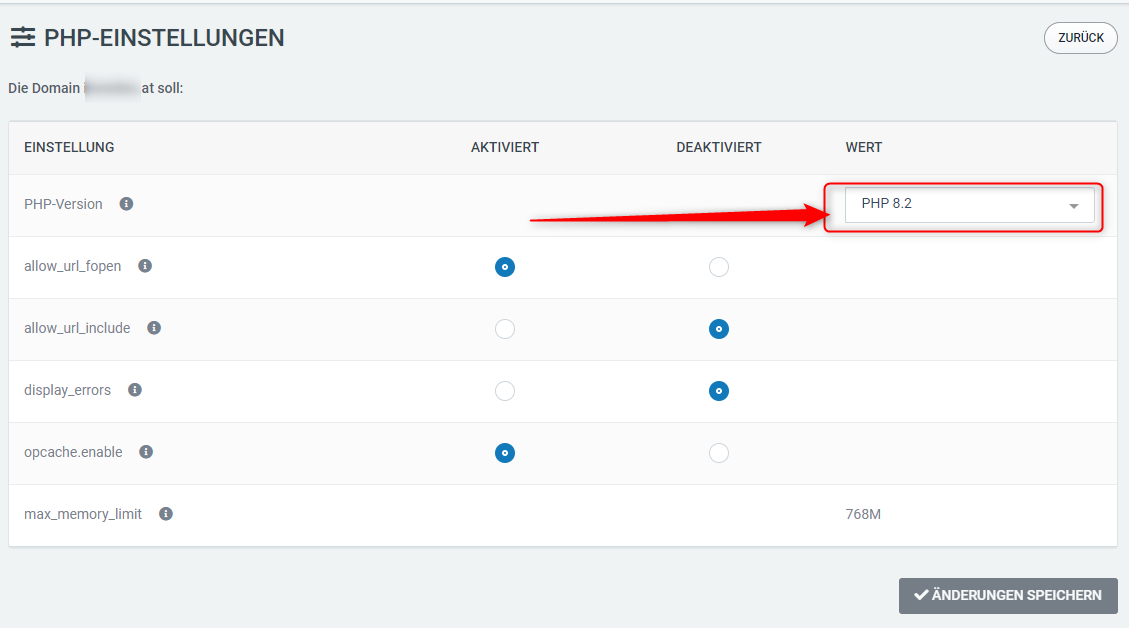
The max_memory_limit cannot be adjusted and applies to the selected PHP version.
2. I manage my web hosting in the Control Panel
!!! WARNING !!!
!!! WARNING !!!
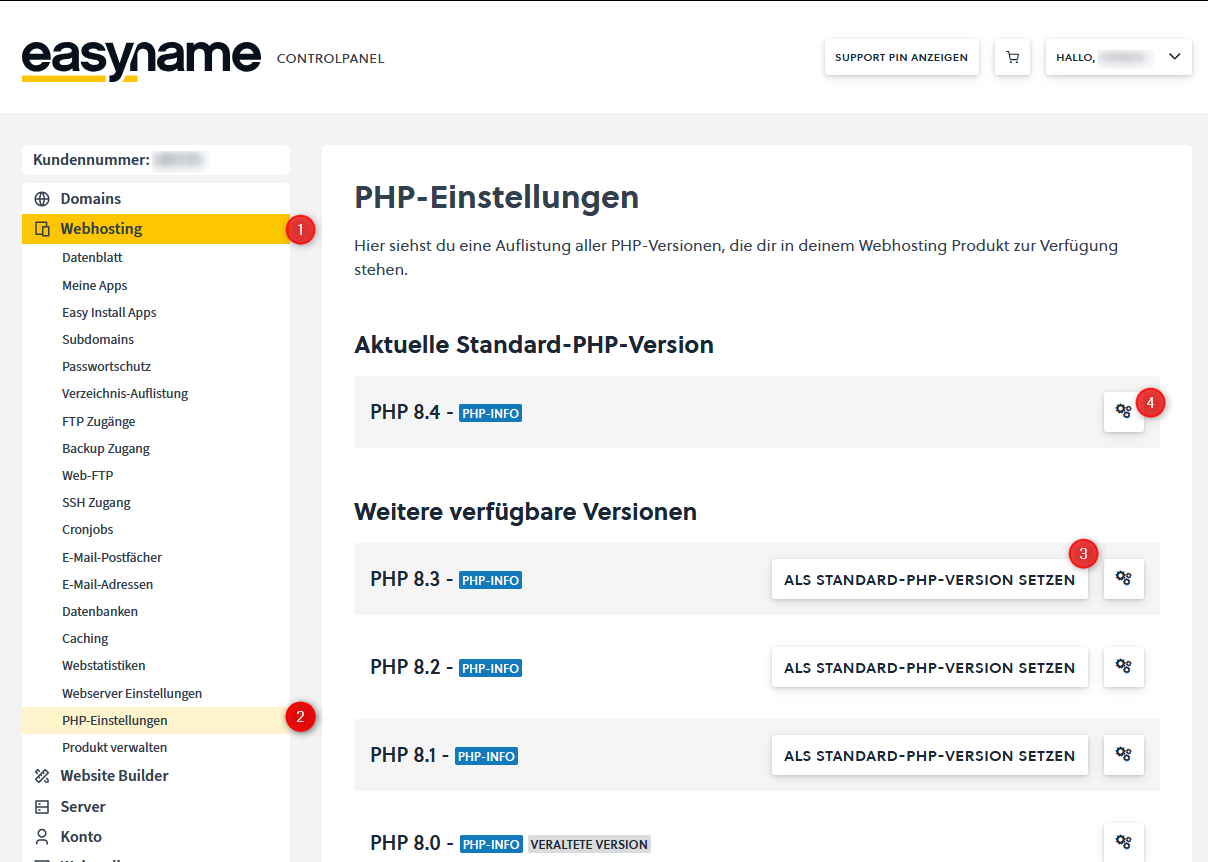
You can adjust the default PHP version by first clicking on [Web Hosting] (1) in the Control Panel menu and then on the submenu [PHP Settings] (2). The currently set default version is displayed at the top, followed by a list of available versions. Click [Set as Default] (3) next to the desired version to change the setting. Under the link [Settings] (4) next to each version, you can adjust additional parameters, such as the PHP session_cache from memcached, filesystem, or redis.
You can also access this setting directly via this link.
If you want to adjust the PHP version only for a specific subdomain – for example, for a content management system that requires a specific version or is not compatible with a newer version – please proceed as follows:
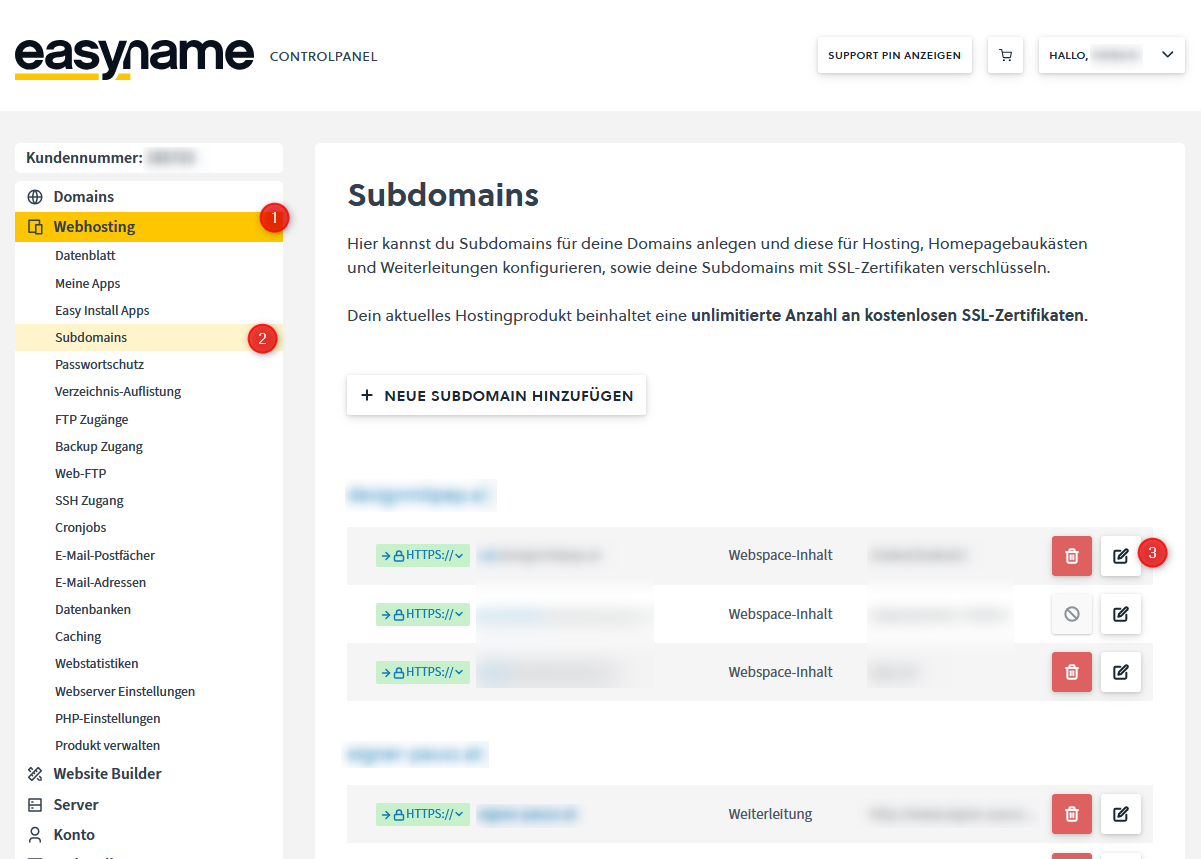
In the [Web Hosting] menu (1), click on the submenu [Subdomains] (2) and then click the pencil icon next to the subdomain to adjust the display options.
You can also access this setting directly via this link.
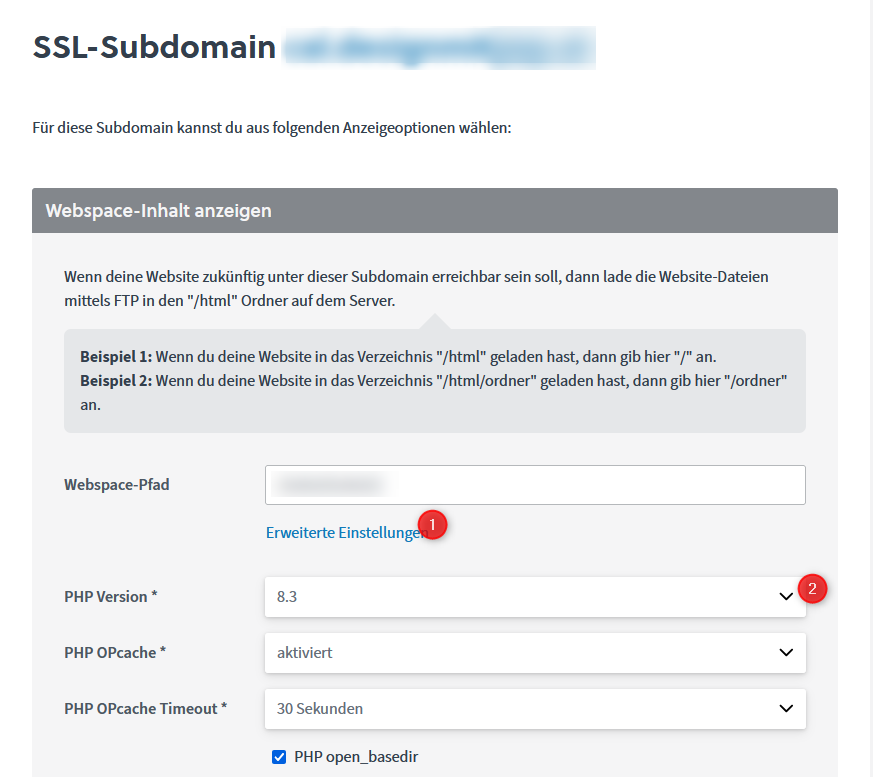
Select [Show Webspace Content] to find the link [Advanced Settings »] (1) next to the folder text field. Click on it to set the PHP version (2) and, if necessary, make further adjustments.
If the PHP version of a subdomain differs from the set default version, you will find it in the Control Panel by clicking on [Web Hosting] and then on [PHP Settings]. The corresponding subdomain and the associated PHP version are displayed at the bottom of the page.
The same applies here: the PHP max_memory_limit cannot be adjusted and applies to the selected PHP version.