You have a domain and now want to make different applications or addresses accessible under it? For example, a blog, shop, or intranet – then a subdomain is the way to go. A subdomain can be compared to an apartment within an apartment building – the domain itself is the address of the building, while the subdomains are the addresses of the individual apartments inside it. This makes it possible, for example, with a subdomain for http://www.YourDomain.at, to point to different content on your webspace than you do with your main domain http://YourDomain.at. You can also forward your domain to a completely different domain – for example, from http://YourDomain.at to http://YourSecondDomain.tld.
For the sake of simplicity, the apex domain itself – i.e., http://YourDomain.tld – can also be managed in the subdomain menu and is sometimes referred to by us as a subdomain.
Both the Control Panel and Cloudpit offer a variety of options for managing these sub-addresses, but the interface used for this differs somewhat. Below is a description of how you can manage your subdomains in both systems.
1. Subdomain Management in Cloudpit
2. Subdomain Management in the Control Panel
2.5 Display "Domain Parked" Notice
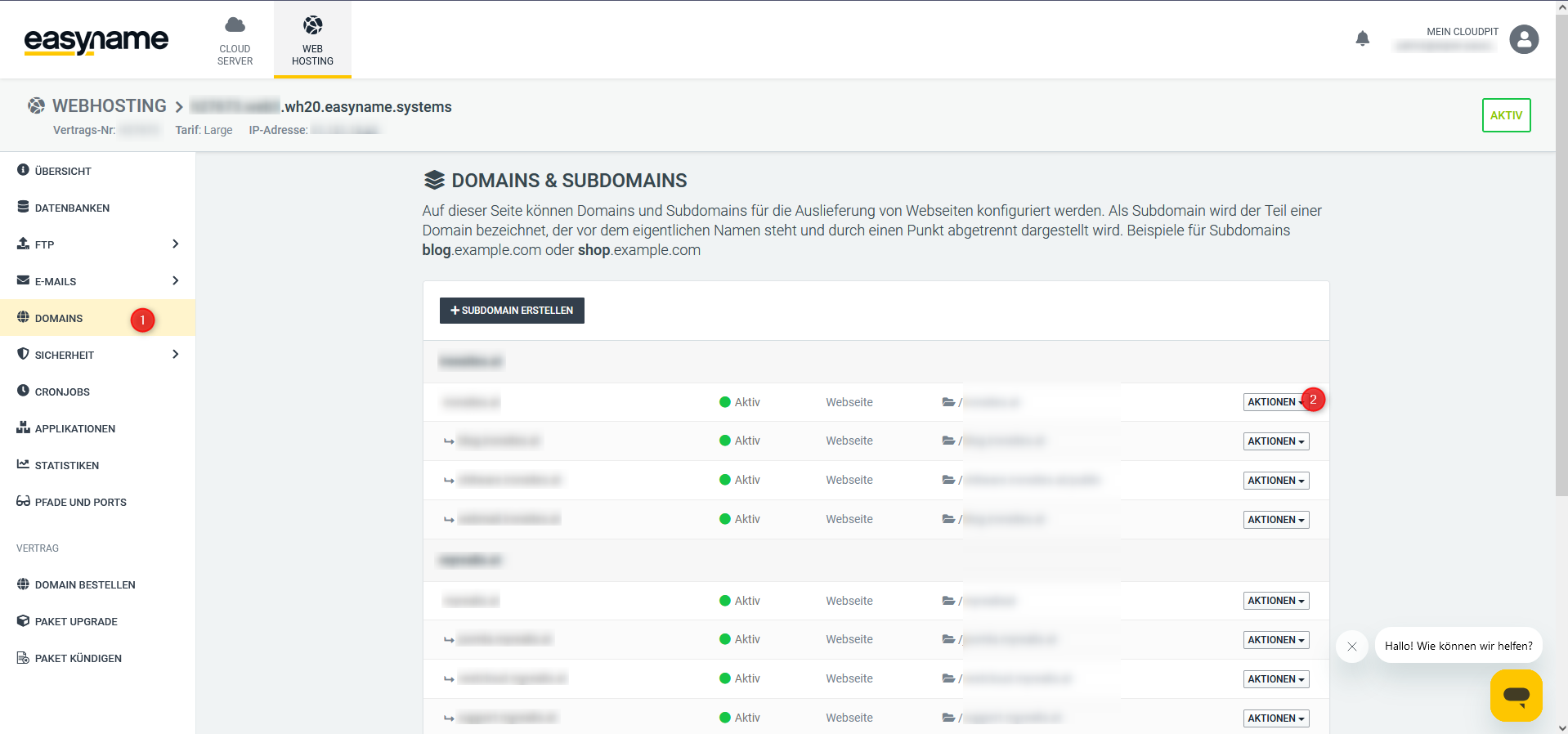
First, navigate to the web hosting management interface and click on the menu item [DOMAINS]. Next to the desired (sub-) domain, click the [ACTIONS] button.


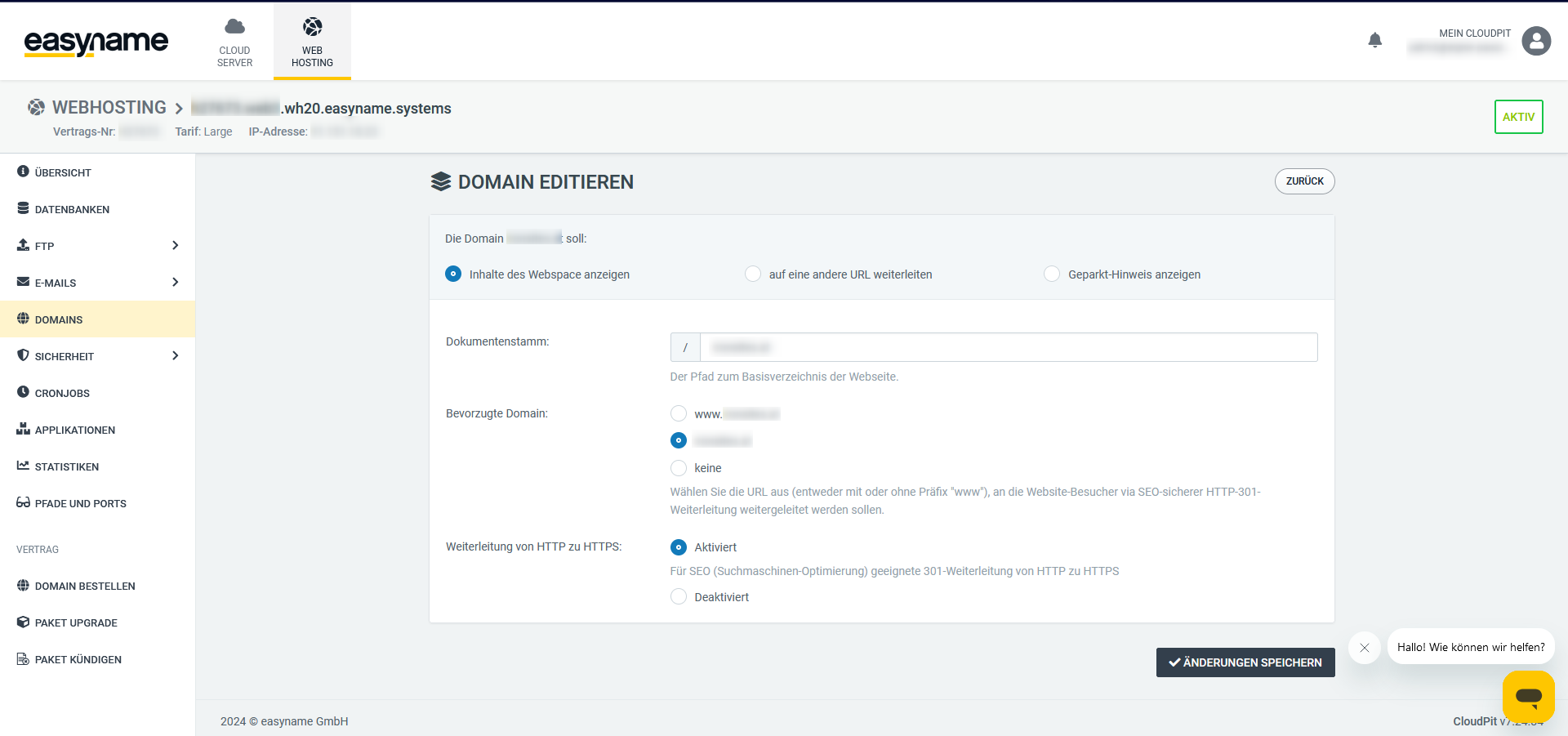
If you have uploaded your website to our webspace, you can then point the subdomain to it with the [Display Webspace Content] option. Please note that you must provide the full path.
Additionally, you can select the preferred domain at this point, which is especially relevant for content on the apex domain. As a result, the web server will automatically deliver to visitors either the apex domain, the www subdomain, or the (sub-) domain as it is.
Finally, you can automatically redirect website requests from the unencrypted HTTP version to the encrypted HTTPS version. This type of redirection is useful for better search engine ranking, instills trust in the website’s legitimacy for visitors, and should generally be set.

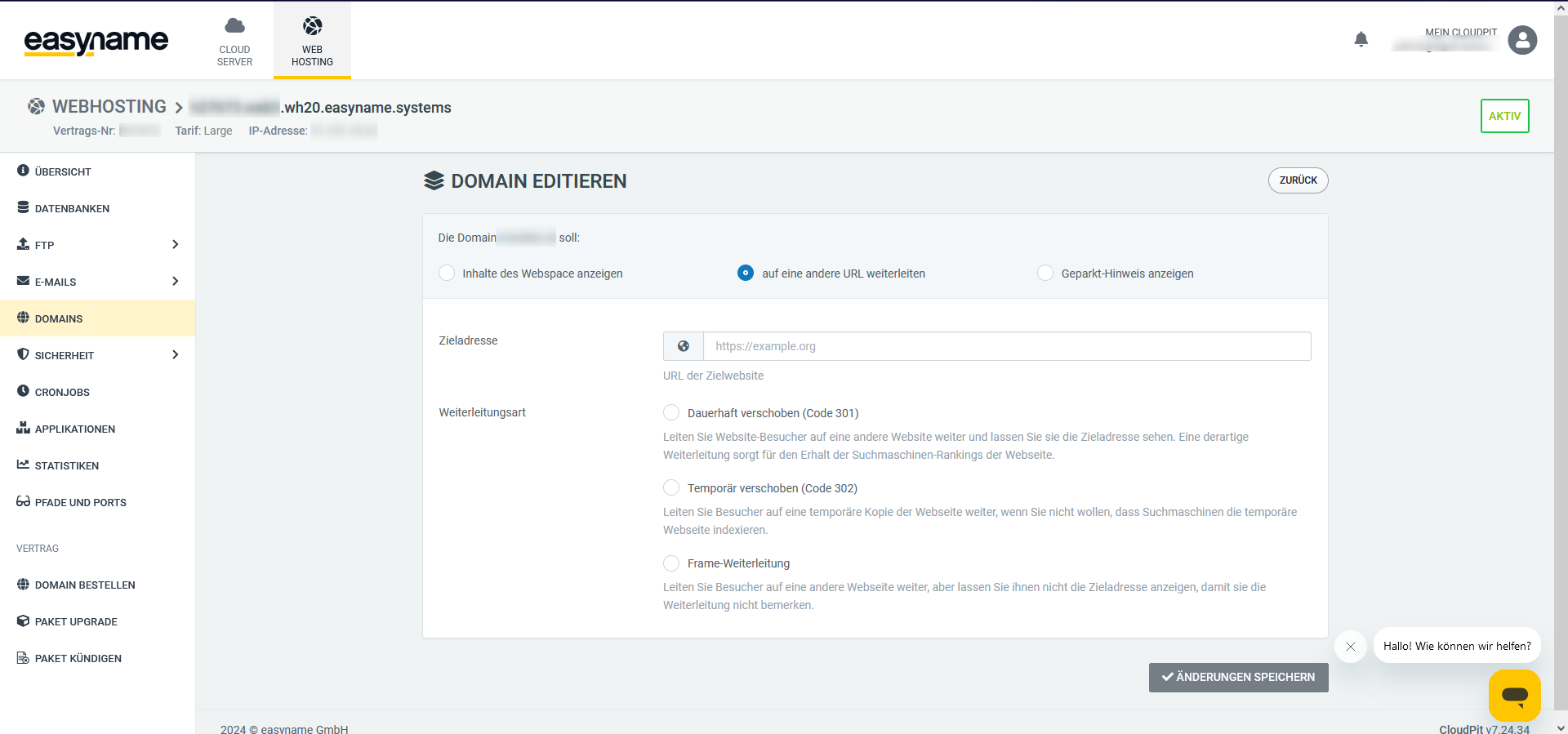
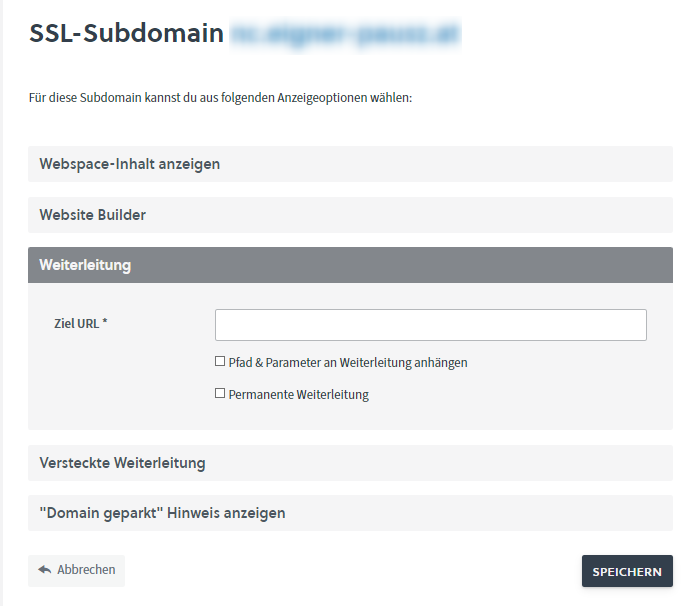
If you want to redirect your domain to another website, you can do this with the [Redirect to Another URL] option. Three types of redirection are available to you.

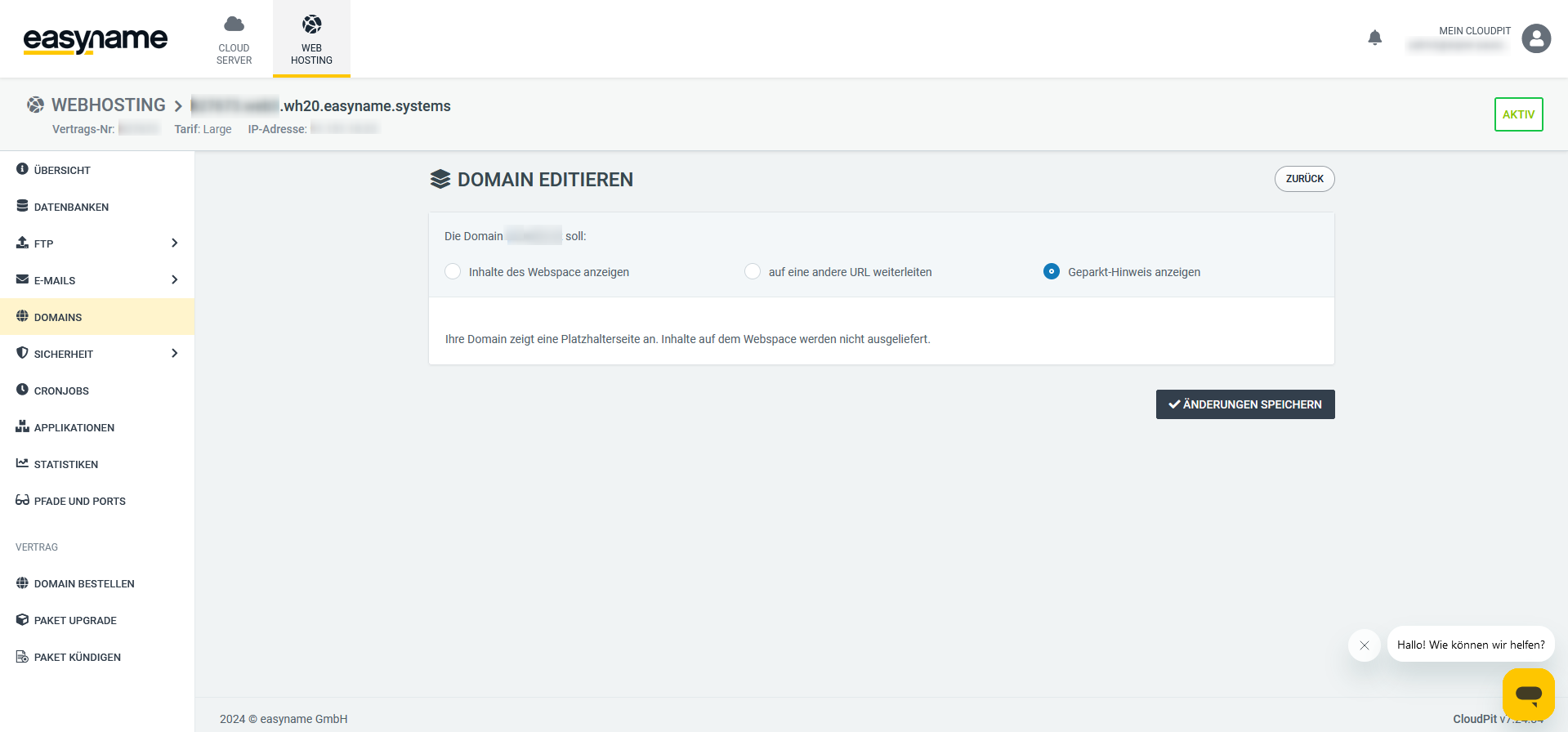
If you have just registered a new domain, it will display a placeholder page by default. Sometimes it can be useful to temporarily switch back to a placeholder page – for example, during maintenance.
Under [Web Hosting] and [Subdomains] you have the option to configure your domain’s entries to different web content.
To create a subdomain, please navigate to [Web Hosting] and [Subdomains] and then click on [+Add New Subdomain]. A text field will appear below, where you can create the desired entry or subentry.
If you want to configure the domain itself (without www or similar), please leave the text field empty. On the next page, you can set the redirect options for the entry you just created. Please note that the respective entry or subentry, such as www., must be created under [Domains] and “DNS” as an “A” record and configured to the IP address of the easyname web server.

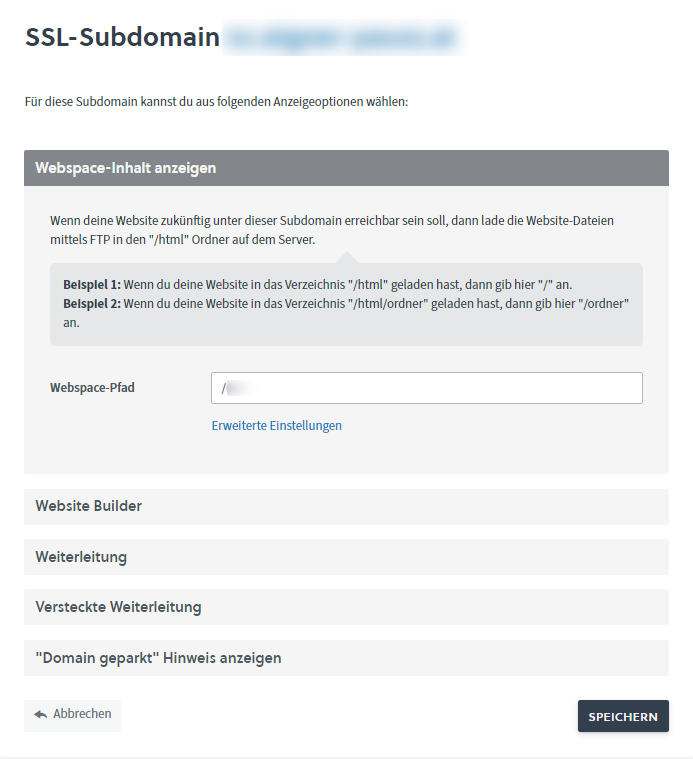
If you want your website to be displayed under this subdomain, upload your files via FTP to the "/html" folder on the server. The path "/html" does not need to be specified here. Example: If you upload your website to the directory "/html/folder/", then you enter "/folder/" here.

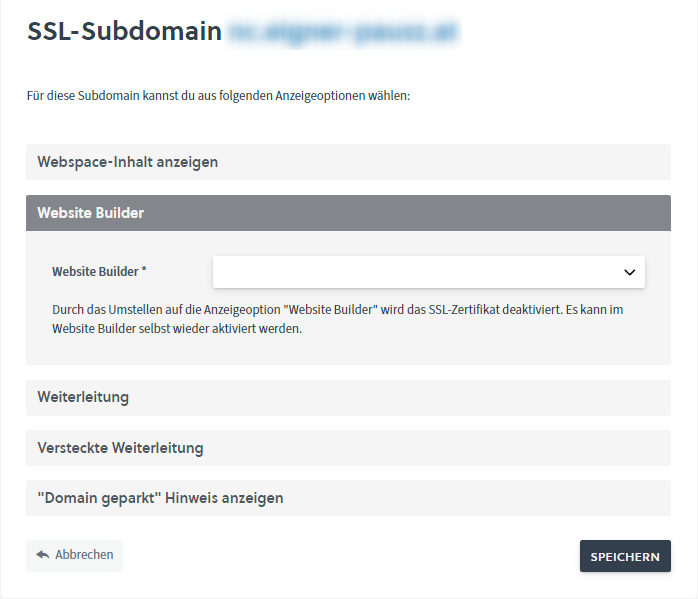
If you have booked a Website Builder with us, you can use this type of redirect to make your Website Builder website accessible with the respective (sub-) domain.

With the normal redirect, you can forward your domain to another domain name. However, after the redirect, the “real” internet address of the website you redirect to will appear.

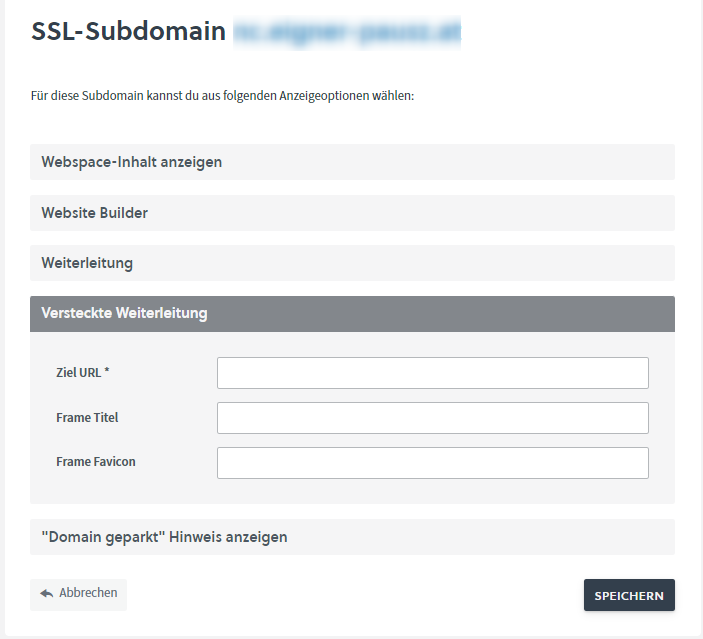
With the hidden redirect, you have the option to “secretly” redirect your domain without displaying the “real” internet address. This is known as a frame redirect.
This allows you to display the website placeholder “Domain parked at easyname.”