Control Panel - How do I configure my email client?
If you are using CloudPit, please use the following guide to set up your email client:
CloudPit - How do I configure my email client?
Although CRAM-MD5 is a secure authentication protocol, it is no longer supported by many manufacturers and is becoming increasingly obsolete. Therefore, our Webhosting 2.0 platform relies exclusively on modern SSL/TLS encryption.
Please note that a paid hosting product is required to retrieve your emails using an email program (POP or IMAP). Alternatively, our free webmail is available to you.
Table of Contents
- What are the correct server settings?
- How do I configure my email client?
- What to do if the above steps do not work?
1. What are the correct server settings?
Some email programs use automatic values instead of the specific usernames, passwords, or ports. If these are not corrected with the proper values, sending and receiving issues may occur.
1.1 Incoming mail server (IMAP)
- Hostname: imap.easyname.com
- Port: 993
- Security: SSL/TLS
- Authentication type: Password, normal
1.2 Incoming mail server (POP)
- Hostname: pop.easyname.com
- Port: 995
- Security: SSL/TLS
- Authentication type: Password, normal
1.3 Outgoing mail server (SMTP)
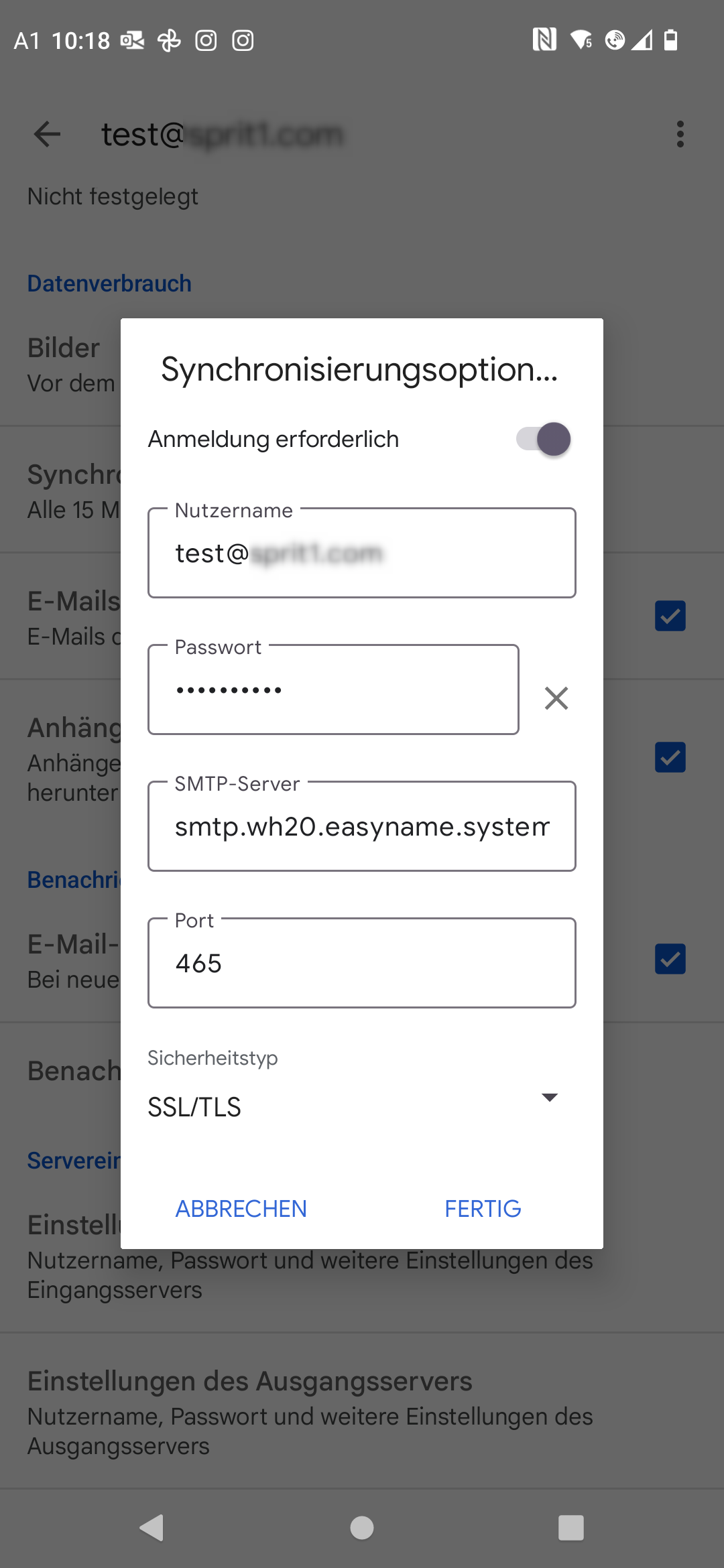
- Hostname: smtp.easyname.com
- Port: 465
- Security: SSL/TLS
- Authentication type: Password, normal
2. How do I configure my email client?
Depending on the client, you will find the server settings in different ways. The following articles describe some of these methods for the most common clients.
2.1 Where do I find the settings in Outlook?
In Outlook, click on the "File" menu, then in the window that opens, click on "Account Settings" -- "Server Settings".
Here you can adjust the settings for the incoming and outgoing mail servers.
If sending or receiving is still not possible, open the Control Panel and select the option "Mail (Microsoft Outlook) (32-bit)".
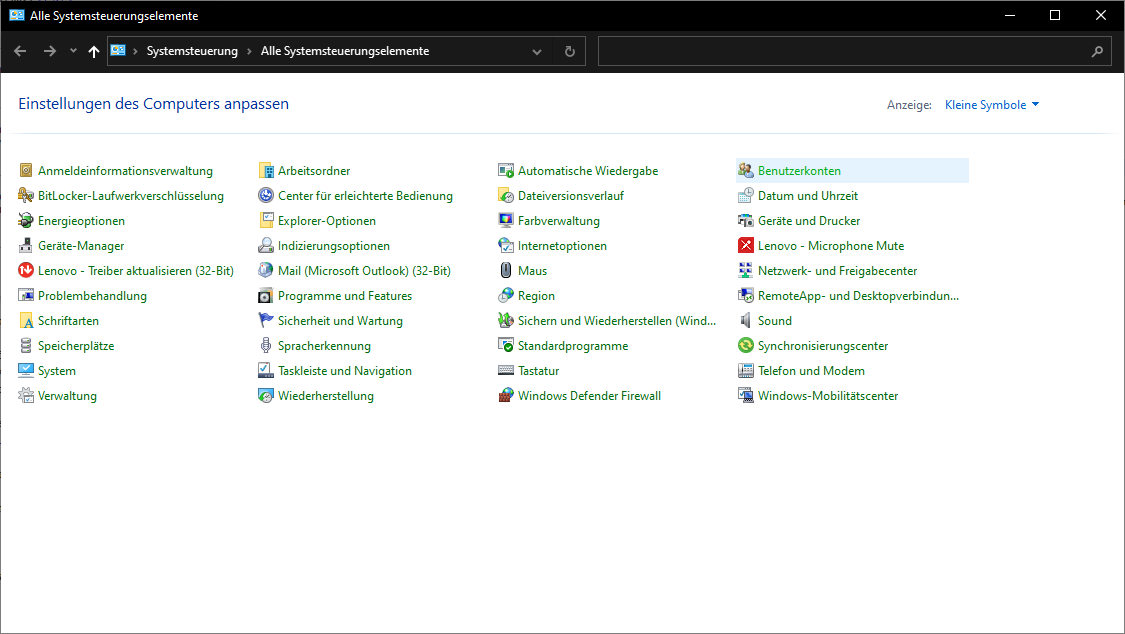
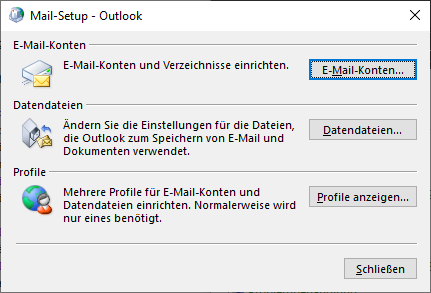
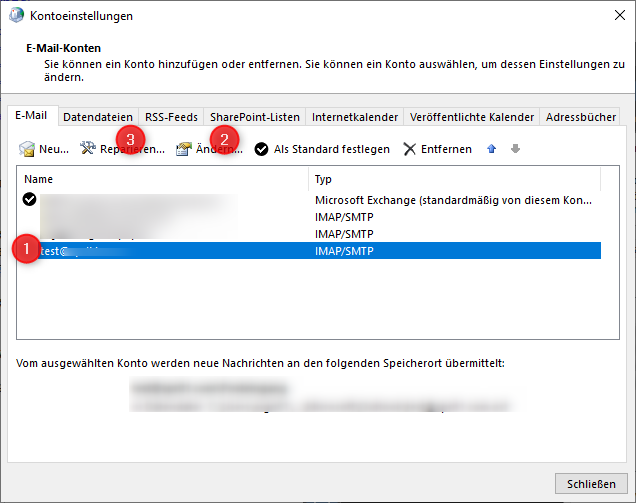
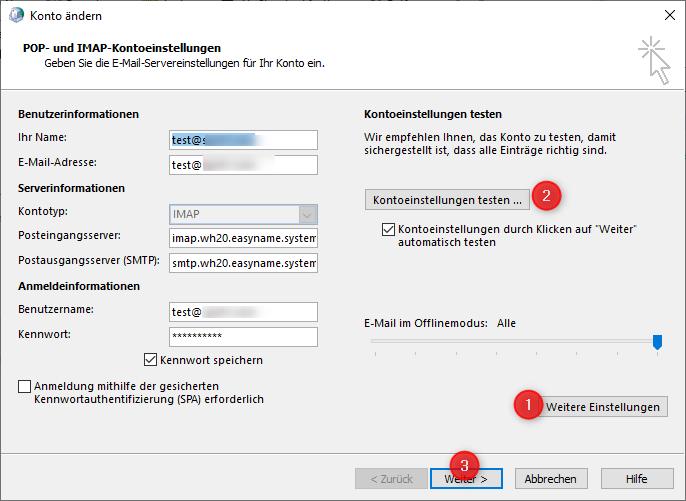
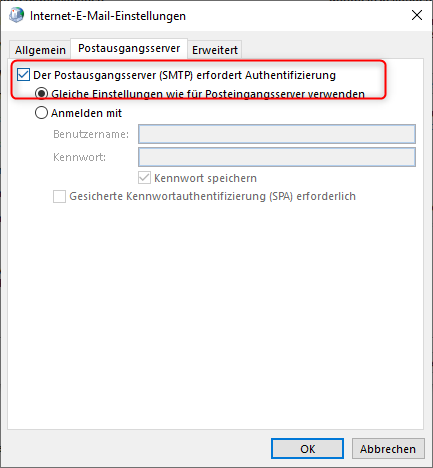
In these settings, click on "Email Accounts" and then select the account you want to change. To do this, first click on the desired email address on the left and then either click "Change". Enter the correct server settings in this window and then click on "More Settings".
First, check under the Outgoing Server tab that the option "My outgoing server (SMTP) requires authentication" is selected and below that "Use same settings as my incoming mail server".
Then check under the "Advanced" tab that the correct ports and encryption are listed. Now click "OK".
Finally, click on "Test Account Settings". If no error message appears here, you can click "Next" and finish the account change.
2.2 Where do I find the settings in Thunderbird?
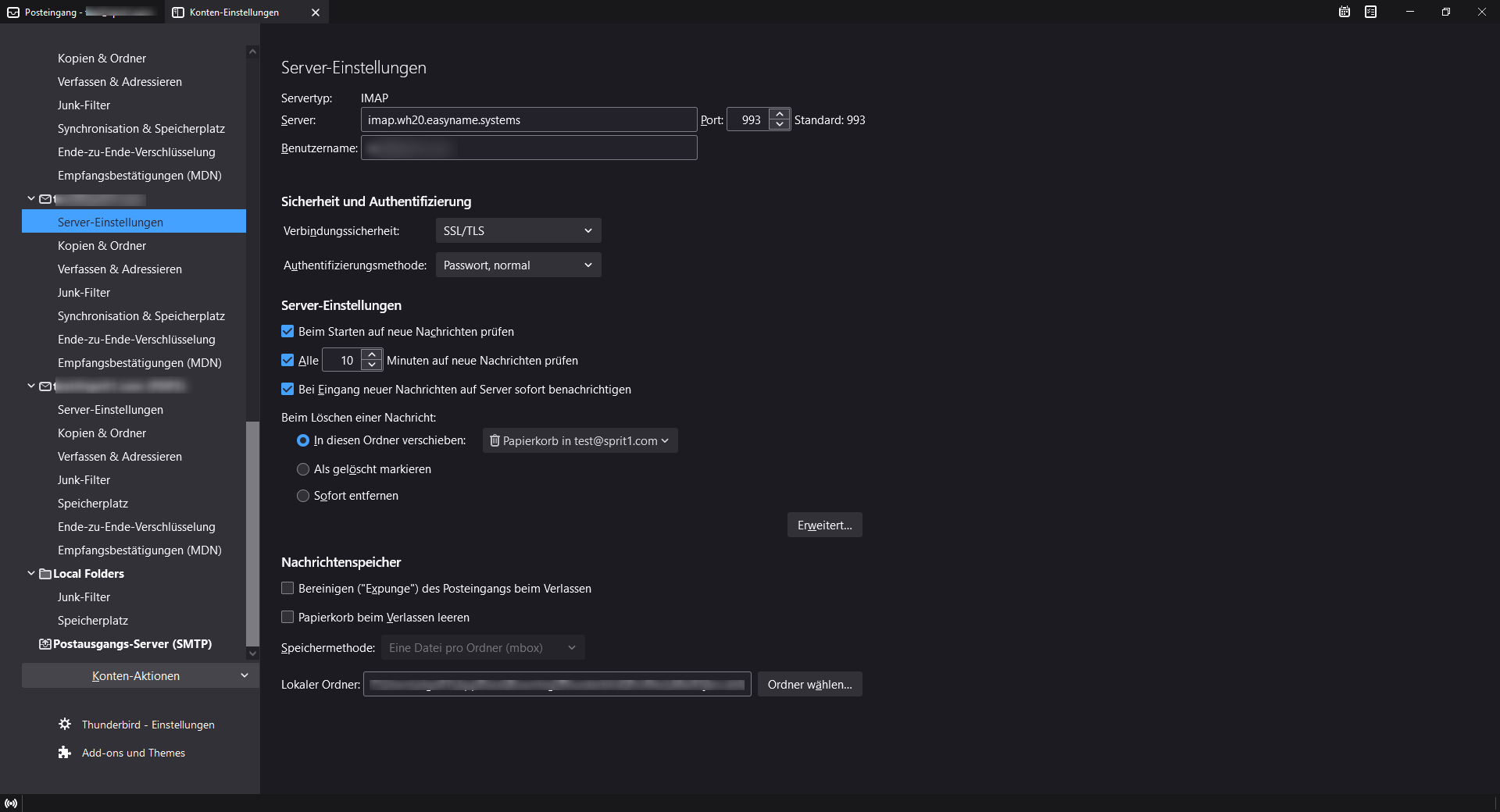
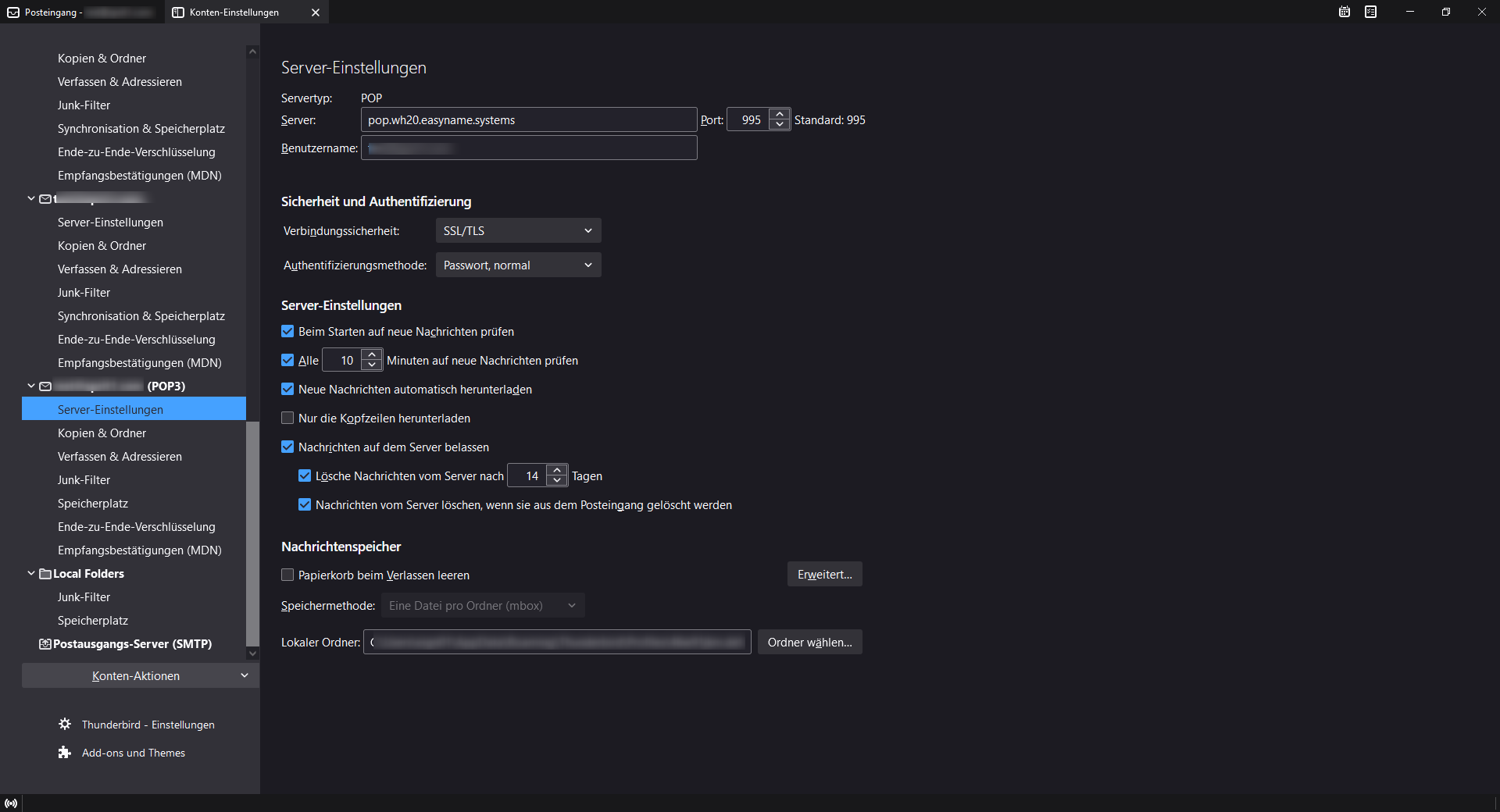
Right-click on the email address and select "Settings" from the menu. Now switch to the "Server Settings" section. There you can change the "Connection Security" under "Security and Authentication" to SSL/TLS and select "Password, normal" as the authentication method.
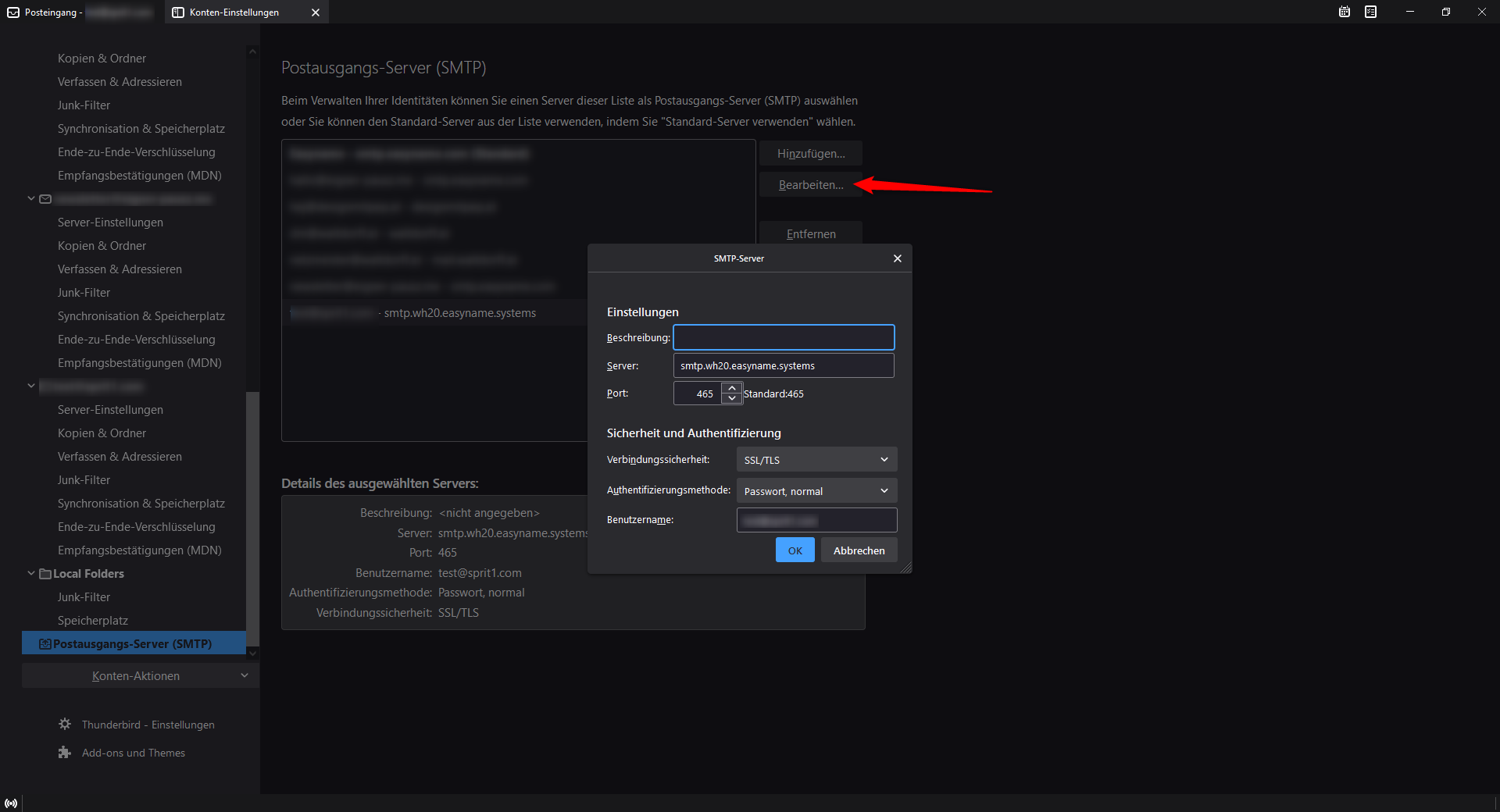
Then check the settings under "Outgoing Server (SMTP)" for possible configuration errors.
2.3 Where do I find the settings in Apple Mail? (macOS)
Open System Preferences and click on Internet Accounts.
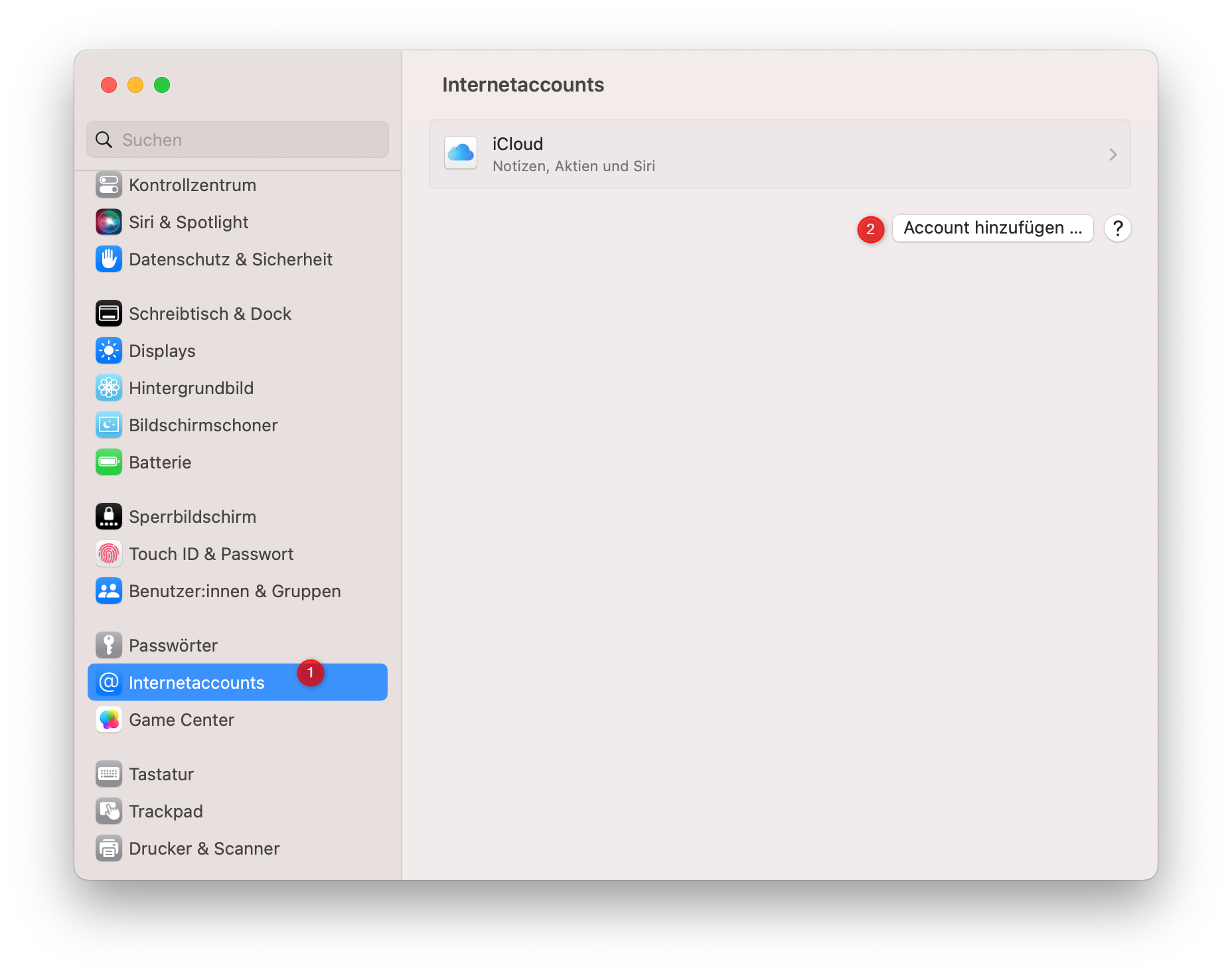
Click on "Add Account" and select "Add Other Account" from the list of email providers.
Enter your email address and the associated password and click "Sign In". In the window that opens, add the server address.
If sending or receiving is not possible with these settings, open the server settings behind the email address and check the following points:
- Are the form fields for account name and password filled or empty? For correct sending and receiving, these must always be filled. If it says "automatic" or "optional" here, you must re-enter the email address and password and save.
- Are specific ports specified for the incoming and outgoing mail servers, or is "manage automatically" checked? If this is set to manage automatically, you must remove this and enter the ports mentioned above.
- Is the correct authentication type selected? "Password, normal" must be selected here.
2.4 Where do I find the settings in Apple Mail? (iOS)
Go through the "Settings" icon to the "Mail, Contacts, Calendars" menu or "Mail" in newer iOS versions.
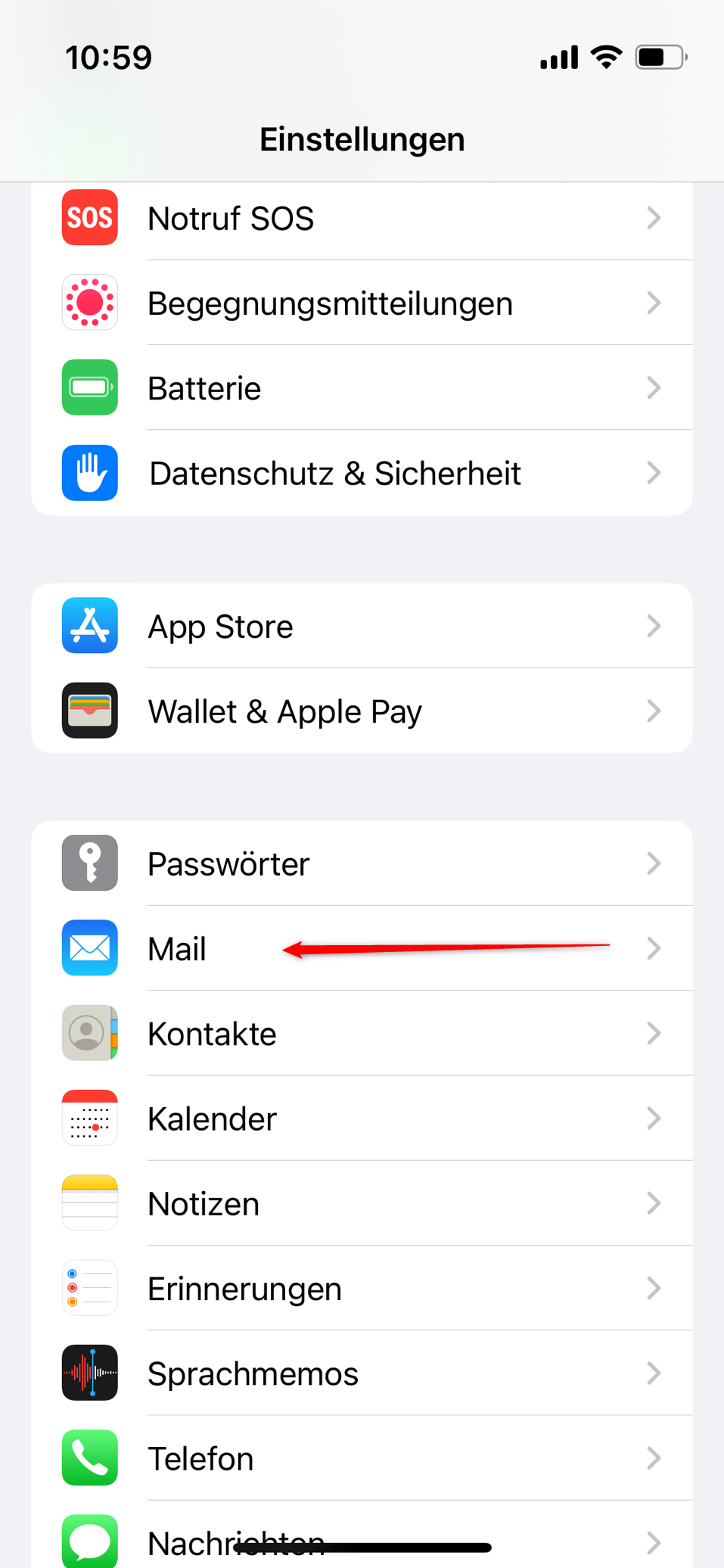
- Under "Accounts," select the desired email address and then click on "Server Settings".
- Select IMAP under "My Email" and enter your email address under Account.
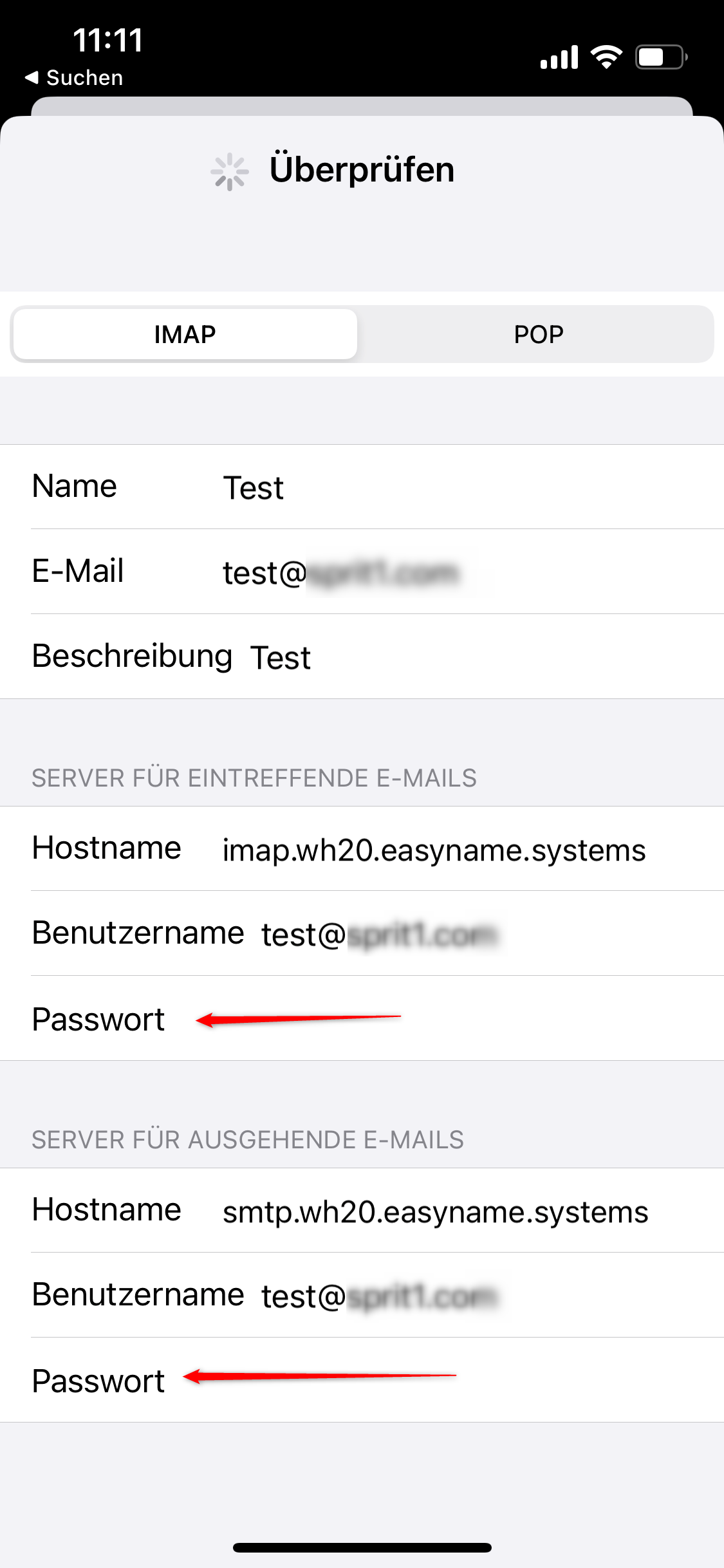
- Change the authentication method from "MD5 Challenge-Response" to "Password".
- Save your settings to complete the process.
2.5 Where do I find the settings in Gmail? (Android)
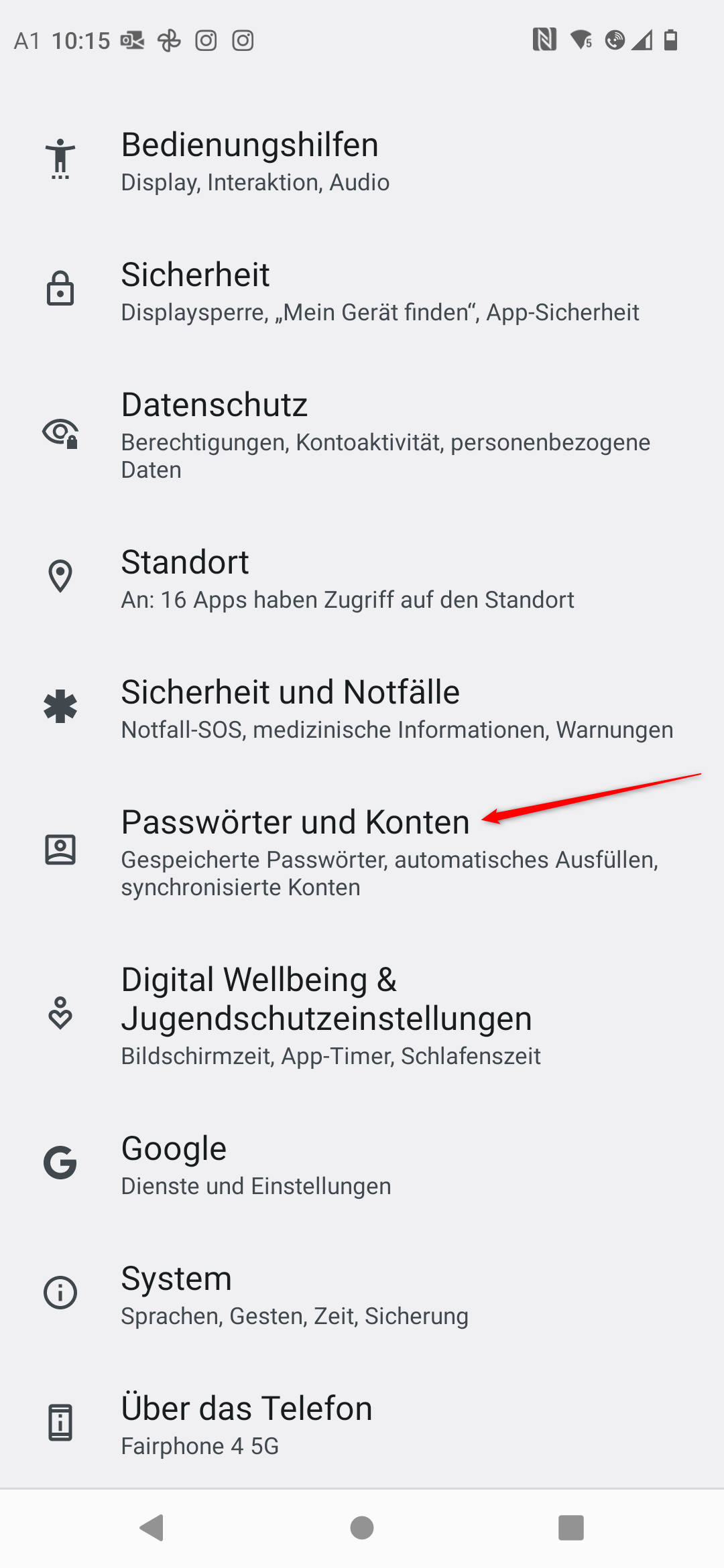
Open the "Settings" app and select the option "Passwords and accounts".
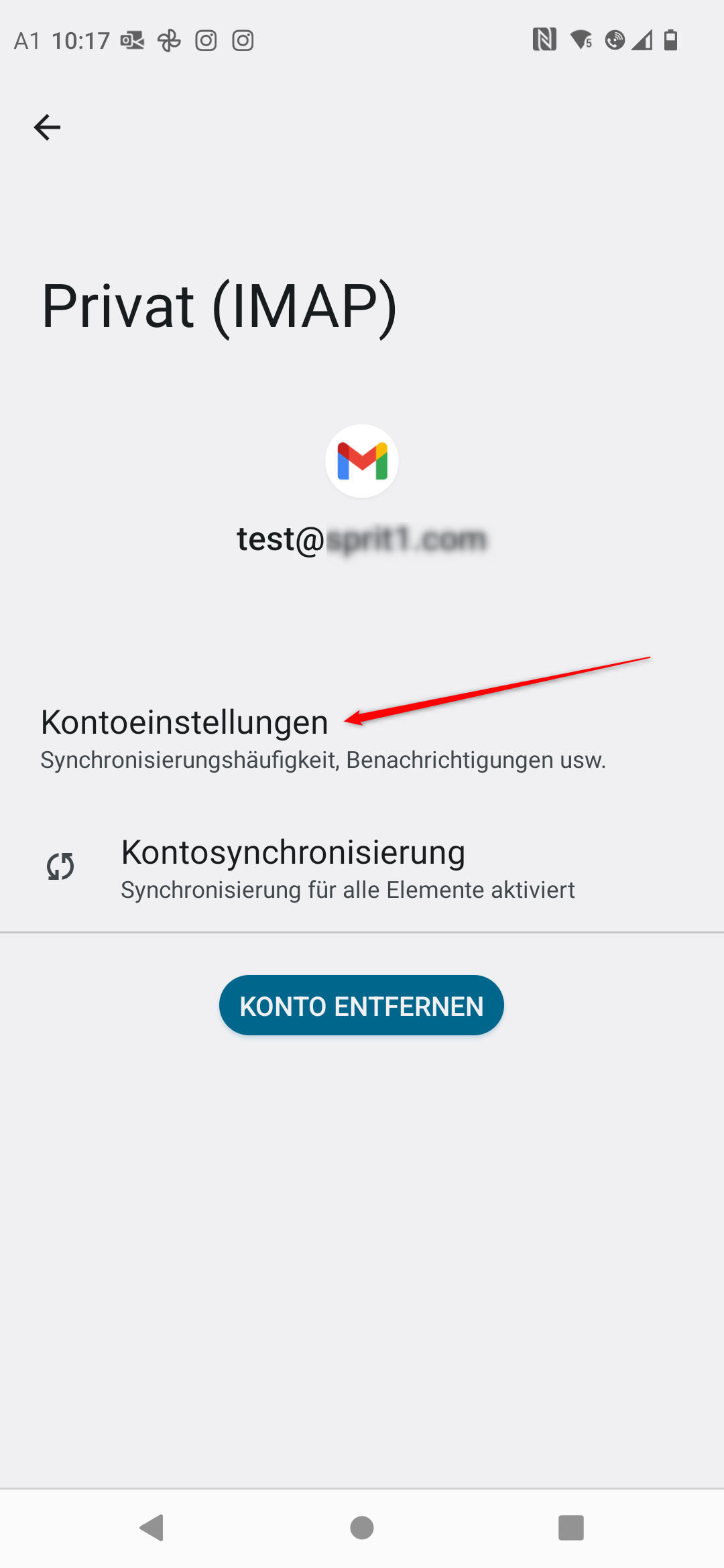
Click on the account you want to change in the list, then click on "Account settings".
This will redirect you to the settings of the Gmail app, where you must select the specific account again.
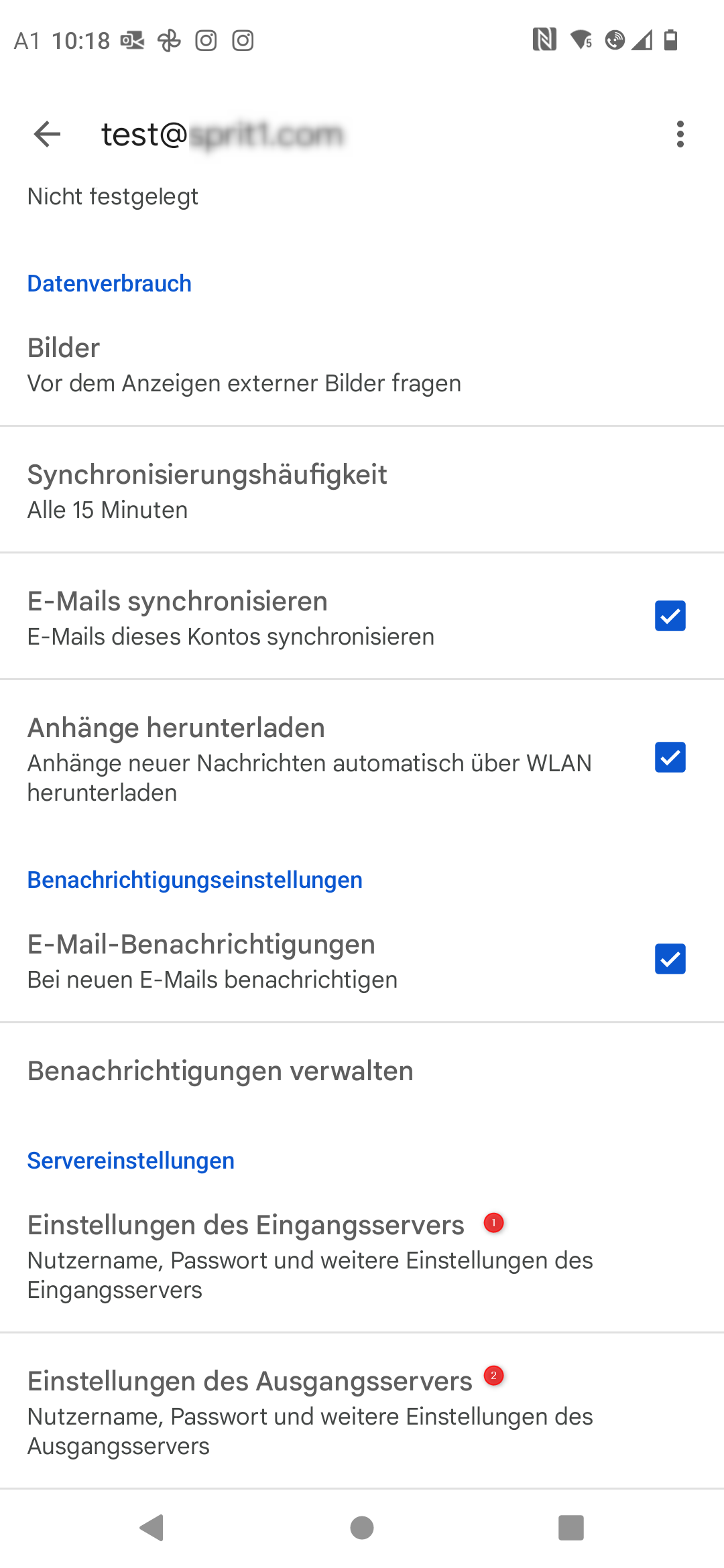
You will find the settings for the incoming and outgoing servers at the bottom of the list.
3. What to do if the above steps do not work?
If, contrary to expectations, your email client displays an error message or sending and receiving mail is disrupted, please do not hesitate to contact us.