How do I initiate a credit card direct debit?
You can store a credit card for recurring payments. The setup differs depending on the system.
Table of Contents
Store credit card in CloudPit
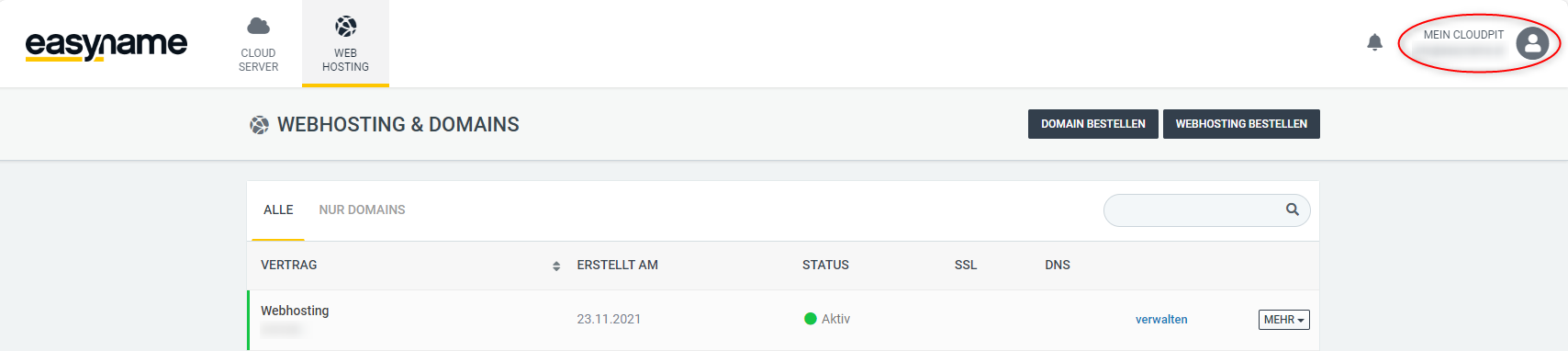
Log in to CloudPit and click on My CloudPit at the top right.
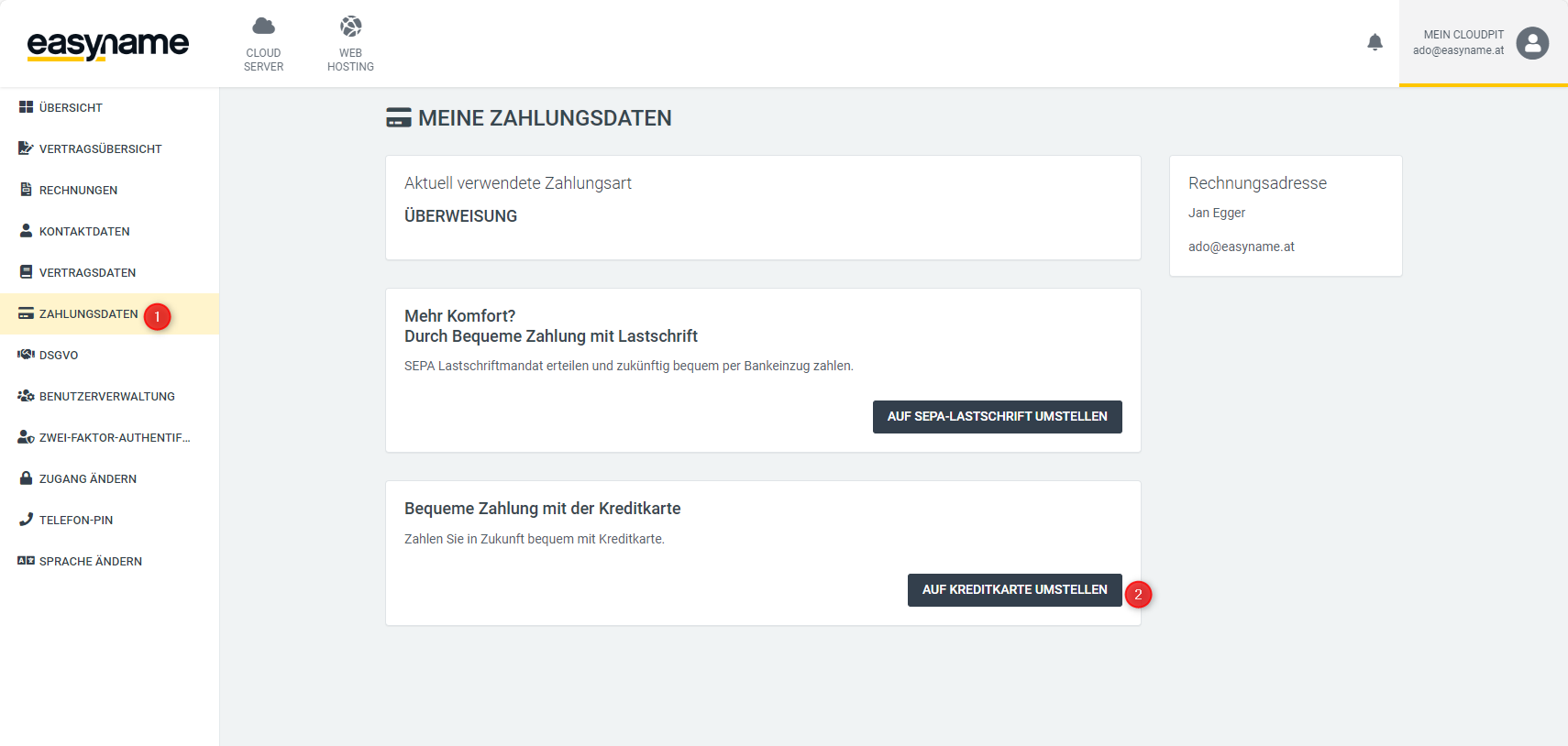
Open the Payment Data section on the left (1).
Click on Switch to Credit Card (2).
Enter your credit card details.
Depending on your credit card provider, you may need to confirm the setup, for example via your credit card provider's app or a confirmation page.
After successful confirmation, the credit card will be used for future invoices.
Store credit card in Controlpanel
Log in to the Controlpanel.
Open Account (1) → Credit Cards (2).
There you will see any credit cards already stored.
If no credit card has been stored yet or you want to add a new credit card, use the Add New Credit Card section.
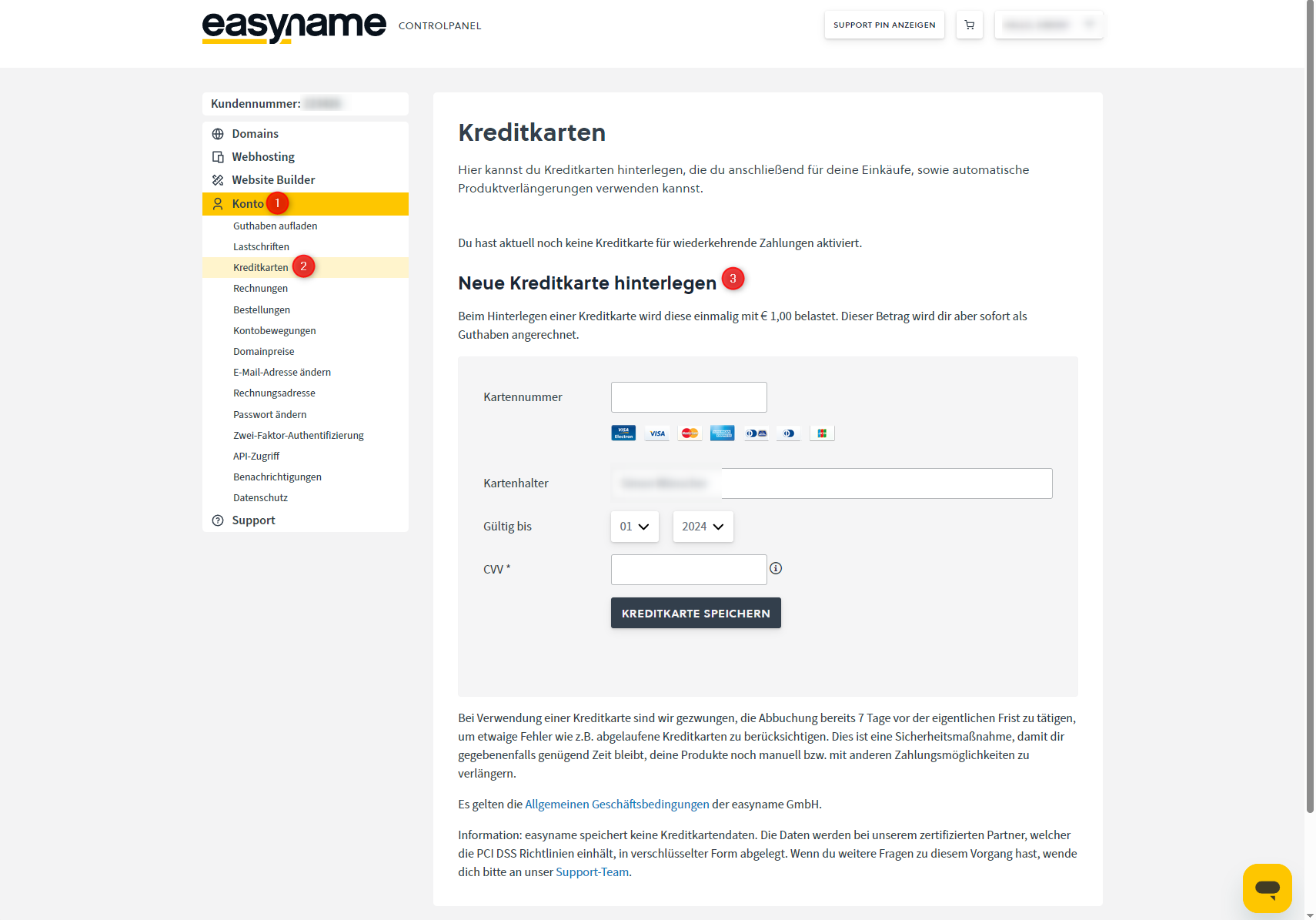
Enter your credit card details.
Depending on your credit card provider, you may need to confirm the setup, for example via your credit card provider's app or a confirmation page.
After successful confirmation, the credit card will be used for future charges.