How can I access the backup of my VPS?
Independent access to the backups of your VPS is currently only available for Linux-based servers. Access to backups of Windows VPS is currently provided via contact with support.
To ensure the highest level of security, we create daily backups of your data. You have access to the last 7 days.
Logging in to server management
Log in to your server management via the easyname Control Panel by first clicking on [Server] in the navigation bar on the left and then on [Login] next to the desired server.
How to access your backup
In the server management menu on the left, go to the [Backup] section to view all available backups.
Click on the [Actions] item next to the backup you want to access. You then have the option to (a) restore or (b) mount this backup. With option (a), the server will be reset to the backup state. With option (b), the backup will be made available as a folder on your server, so you can, for example, copy individual files from the backup to the server.
How to use snapshots
A snapshot is a point-in-time image of your server. It is strongly recommended to create a snapshot before making changes to the server, such as an update. Create a snapshot shortly beforehand so you can restore the server to this state if necessary.
In the server management menu on the left, go to the [Snapshots] section to view all available snapshots.
Create a snapshot by clicking the [Create new snapshot] button, for example before updating your system, so you can restore the original state in case of an error. The created snapshot will appear in the list. By clicking the [Restore snapshot] button, the snapshot will be restored. Any changes made in the meantime will be lost after restoration. By clicking the [Delete snapshot] button, the snapshot will be deleted.
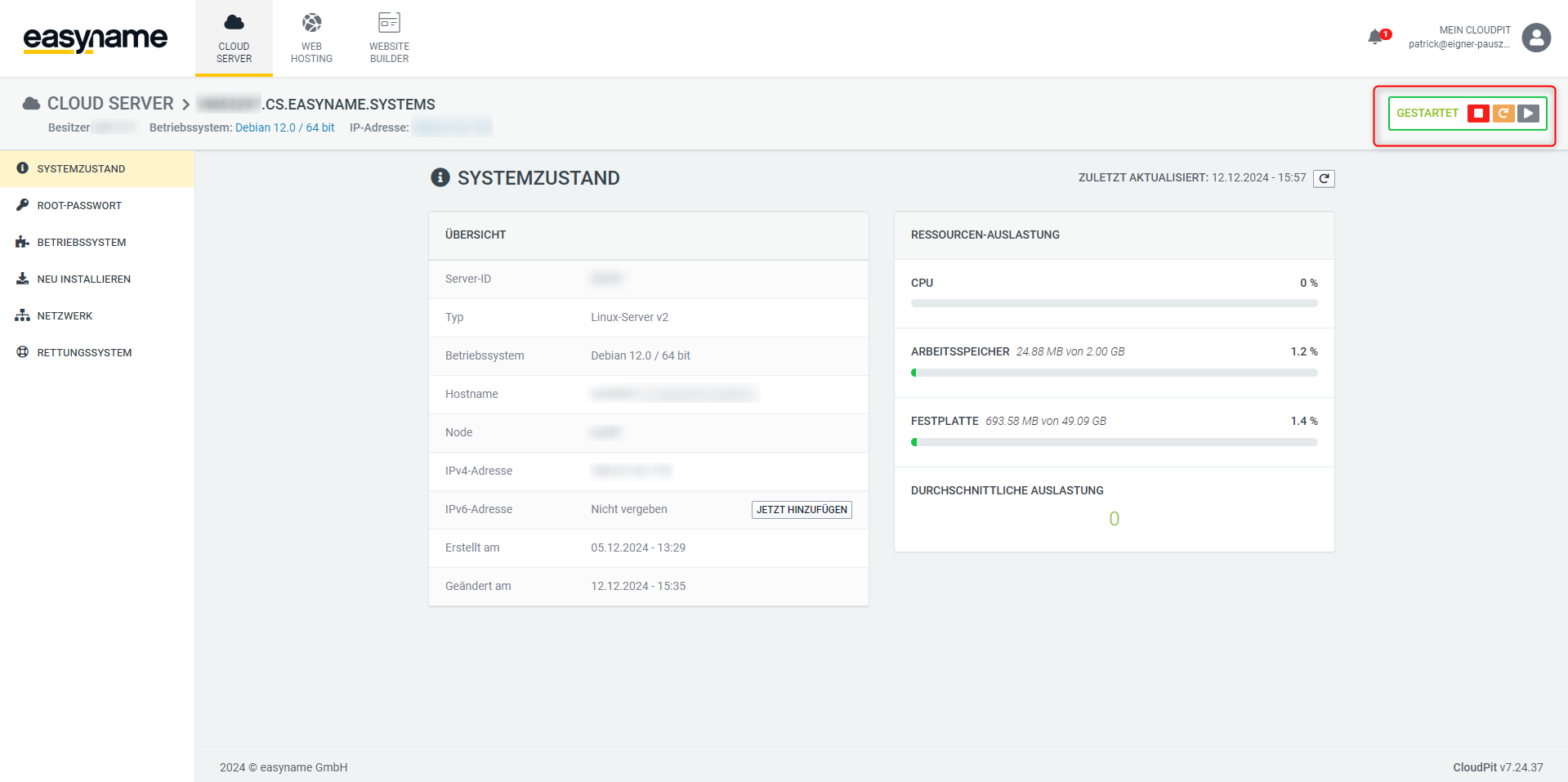
Please note that the system must be temporarily stopped to create a snapshot. To do this, click the red stop icon in your VPS management interface before creating a new snapshot.