Where can I find the password for my easyInstallApp?
Table of Contents |
|---|
Please note that for data protection reasons, we do not store the passwords of your easyInstallApps in plain text and therefore cannot retrieve them or display them in the Control Panel or Cloudpit.
If you no longer remember your app password, you will need to perform a password reset within the app.
Usually, this can be done directly via most login forms, but if you no longer remember the username or login email, there are other ways to regain access to your app.
Below you will find solutions for some of the most commonly used apps with us.
WordPress
If you still know the username for your WordPress installation, you can start the password reset directly via the login screen.
You can also reset the password for your dashboard access via the database of your WordPress installation.
You can find the database information in the wp-config.php file of your WordPress installation – this is usually located directly in the root folder of the installation under /html/apps/wordpress-##### (Control Panel) or Domain.tld/ (Cloudpit).
Look for the following lines and note or copy the information contained within them.
/** The name of the database for WordPress */
define( 'DB_NAME', 'u#####db#' );
/** Database username */
define( 'DB_USER', 'u#####db#' );

/** Database password */
define( 'DB_PASSWORD', 'password' );

/** Database hostname */
define( 'DB_HOST', 'localhost' );
The most important thing here is the database password, as the database username and the database itself will appear again in the next step.
Now click on the [Databases] menu item in the web hosting menu and click on the database icon next to the desired database to start phpMyAdmin.
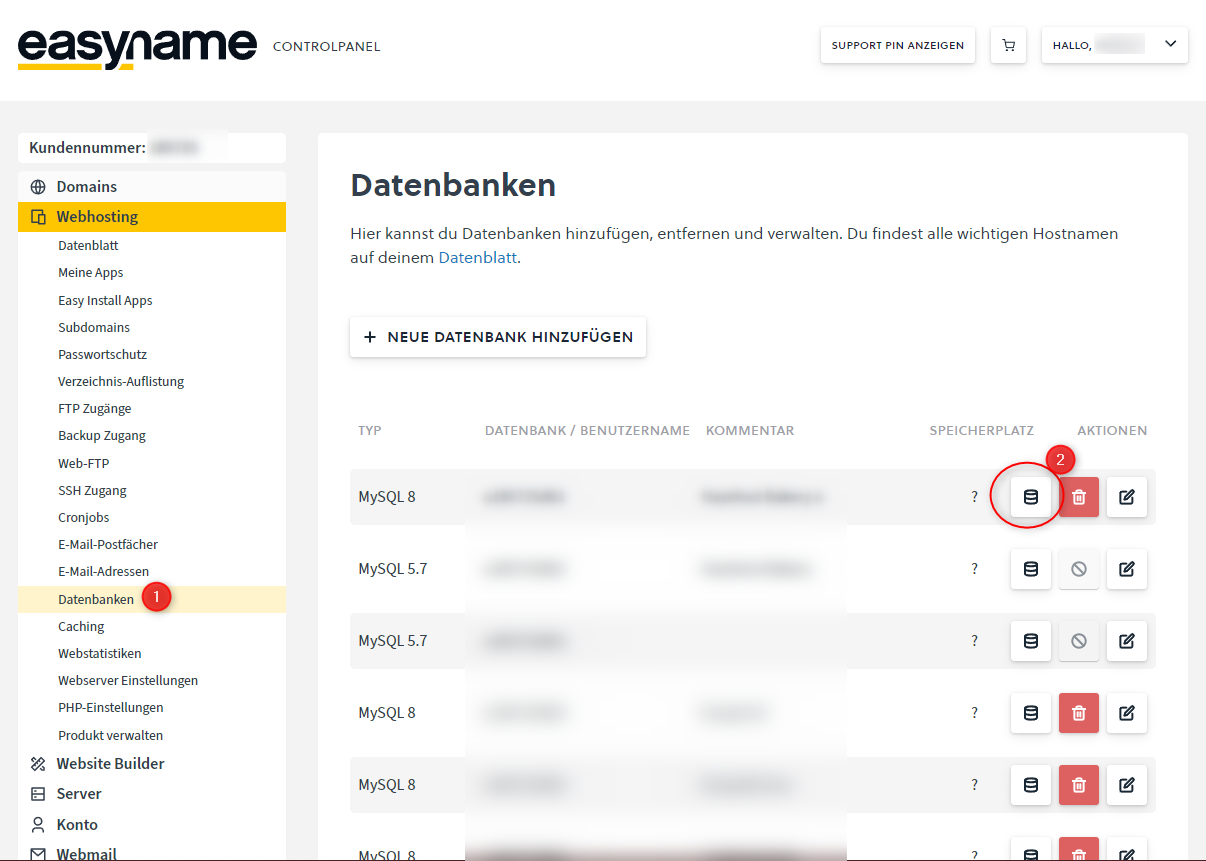
After logging into phpMyAdmin with the user data from the wp-config.php, open the *_users table.
All users registered on this WordPress site are listed here. Please make sure that you only change the password for your own user. To change the password, click on the [Edit] button in the row with your username.
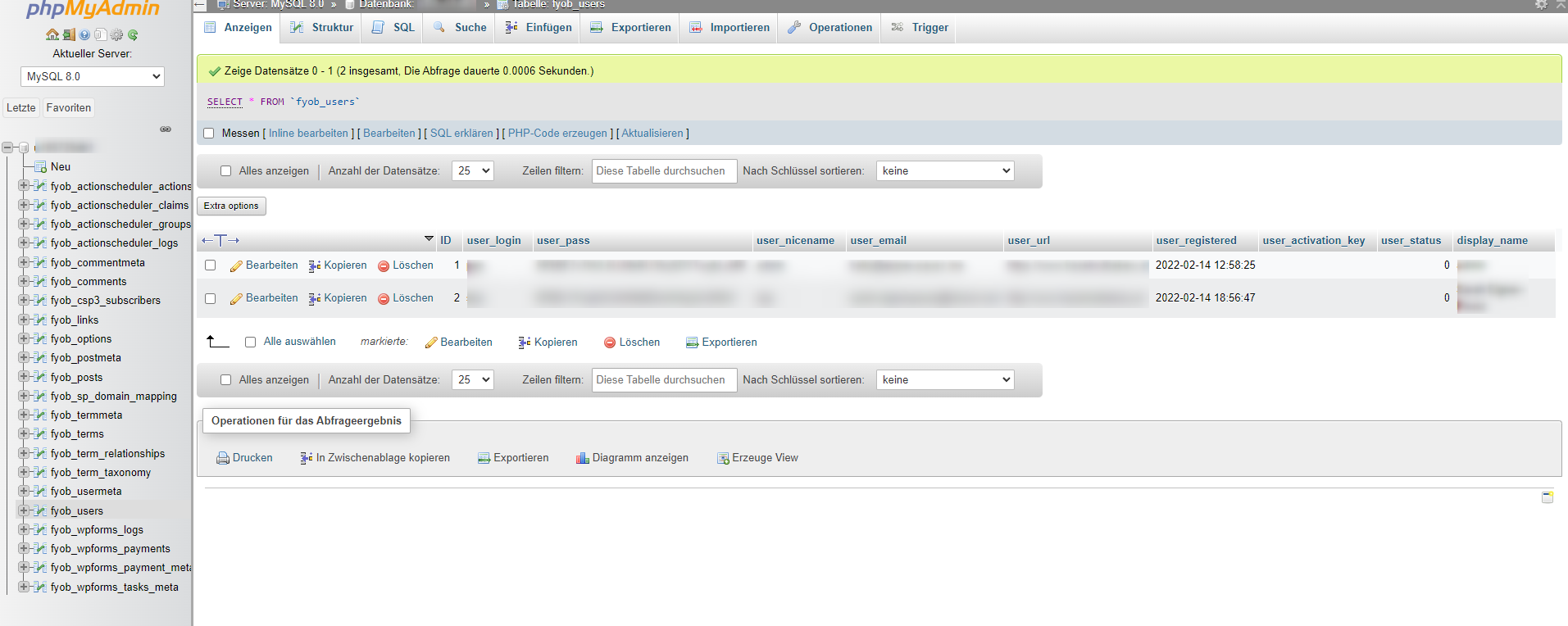
Then enter a new password in the "user_pass" field and select "MD5" from the dropdown menu next to it. Then click Save to apply the changes.
After this step, you can log in directly with the new password.
Joomla
In Joomla, as with WordPress, a new password can be set directly in the _users table of the associated database.
More methods are described in the official support article from the Joomla developers. https://docs.joomla.org/How_do_you_recover_or_reset_your_admin_password
Prestashop
In Prestashop, resetting the password is a bit more complicated – here you first need to read out the so-called COOKIE-KEY from a configuration file and then set it as the new password in the _employees table. More on this at: https://www.dmsolutions.de/hilfe/anleitungen-faq/wie-kann-ich-mein-prestashop-admin-passwort-wiederherstellen.html
Shopware
In Shopware, the method depends on the version used – in Shopware 5, the admin password can be changed in the associated SQL table as usual – see: https://mauriceneumann.de/shopware-admin-passwort-vergessen-einfach-zuruecksetzen/ Shopware 5
In Shopware 6, however, the command line can also be used as described by the manufacturer: https://docs.shopware.com/de/shopware-6-de/tutorials-und-faq/admin-passwort-zuruecksetzen