How do I change the URL of my WordPress site?
If your WordPress website is moving to a new domain, you need to adjust the domain in several places. It is not enough to just change the WordPress address.
For the website to function fully, you must:
- point the new domain to the existing WordPress directory
- change the WordPress system URL in the database
- replace all old domain entries in the WordPress content
In this example, the following domain change is performed:
-
old domain:
https://www.easytest.at -
new domain:
https://www.easynamehosting.com
Replace these example domains in your own migration with your actual old and new domains.
Table of Contents
- Point new domain to the WordPress directory
- Change WordPress system URL in the database
- Replace old domain in WordPress content
- Common errors and solutions
Point new domain to the WordPress directory
Before you change WordPress itself, the new domain must point to the directory of the existing WordPress installation. Otherwise, WordPress cannot be loaded under the new domain.
Open hosting system
Log in to your customer account.
Open Domains and click on Subdomains for the new domain.
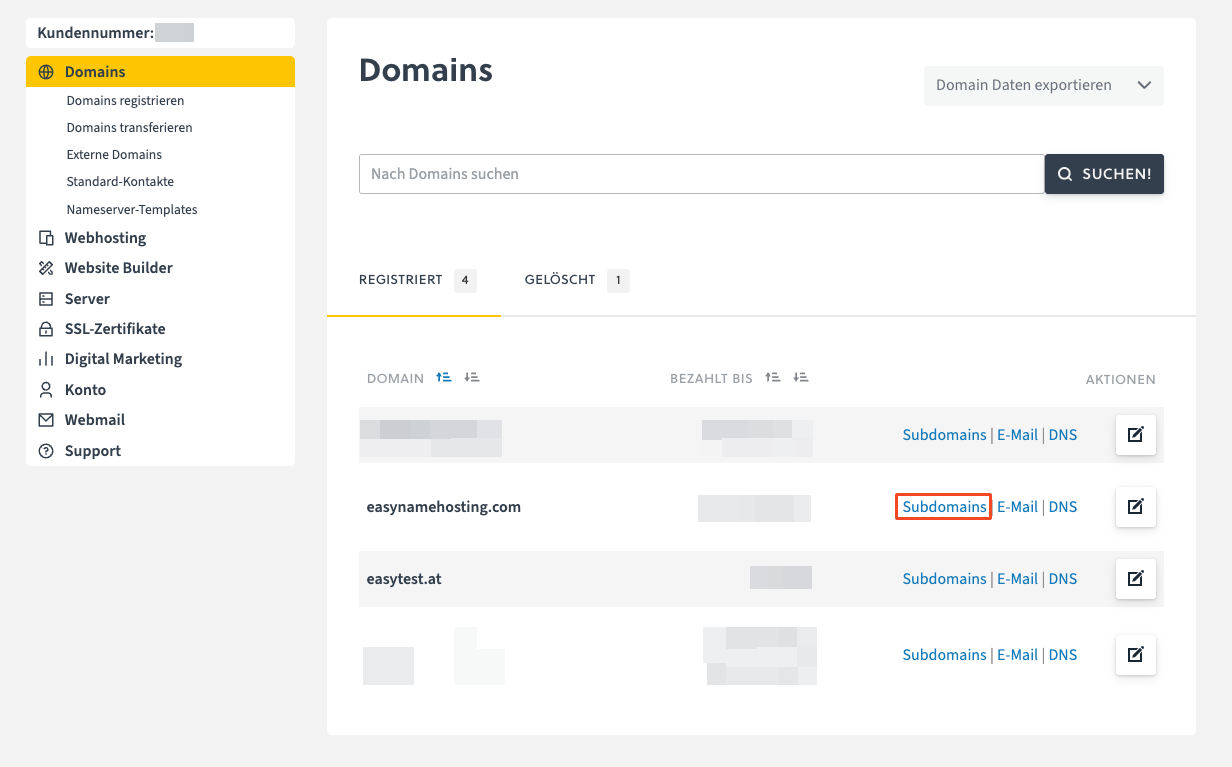
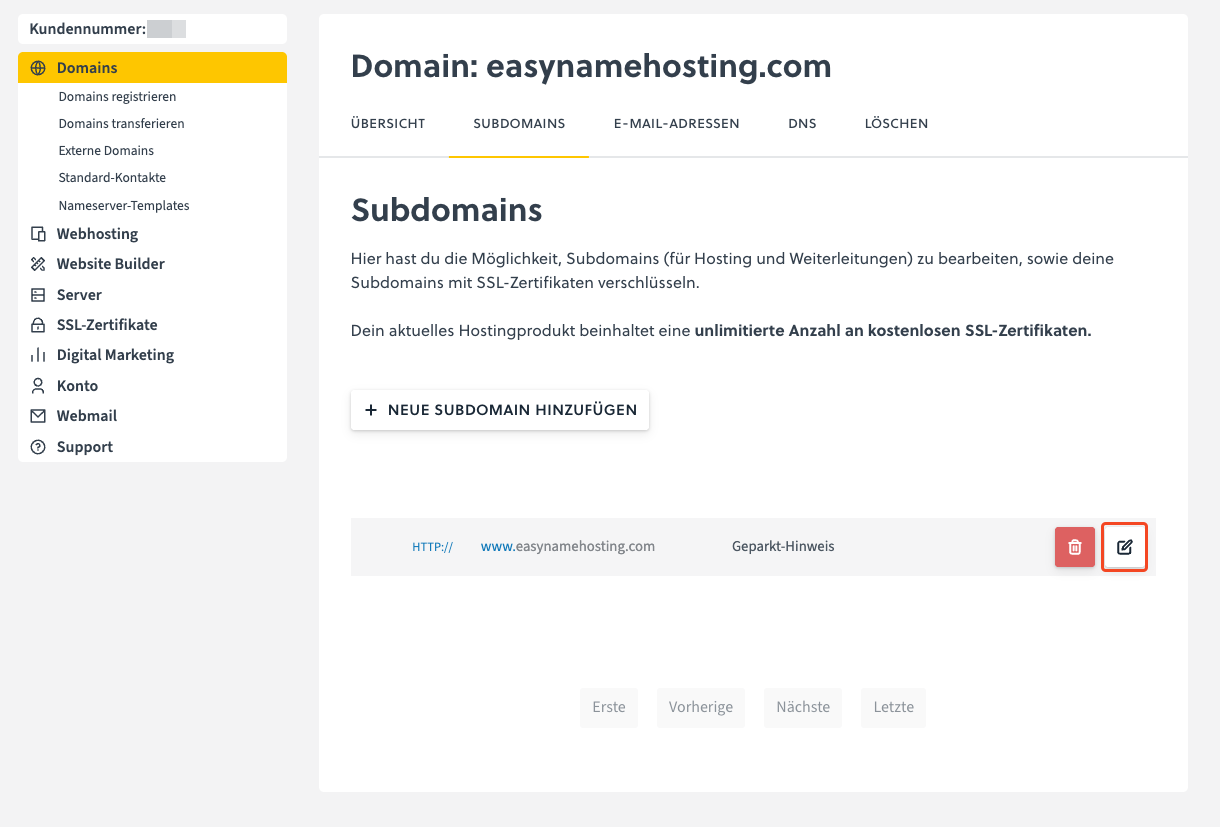
Change domain path
Find the new domain in the list.
Make sure the new domain points to the same directory as the previous WordPress domain.
Example:
/apps/wordpress-177382/Set this directory path also for the new domain.
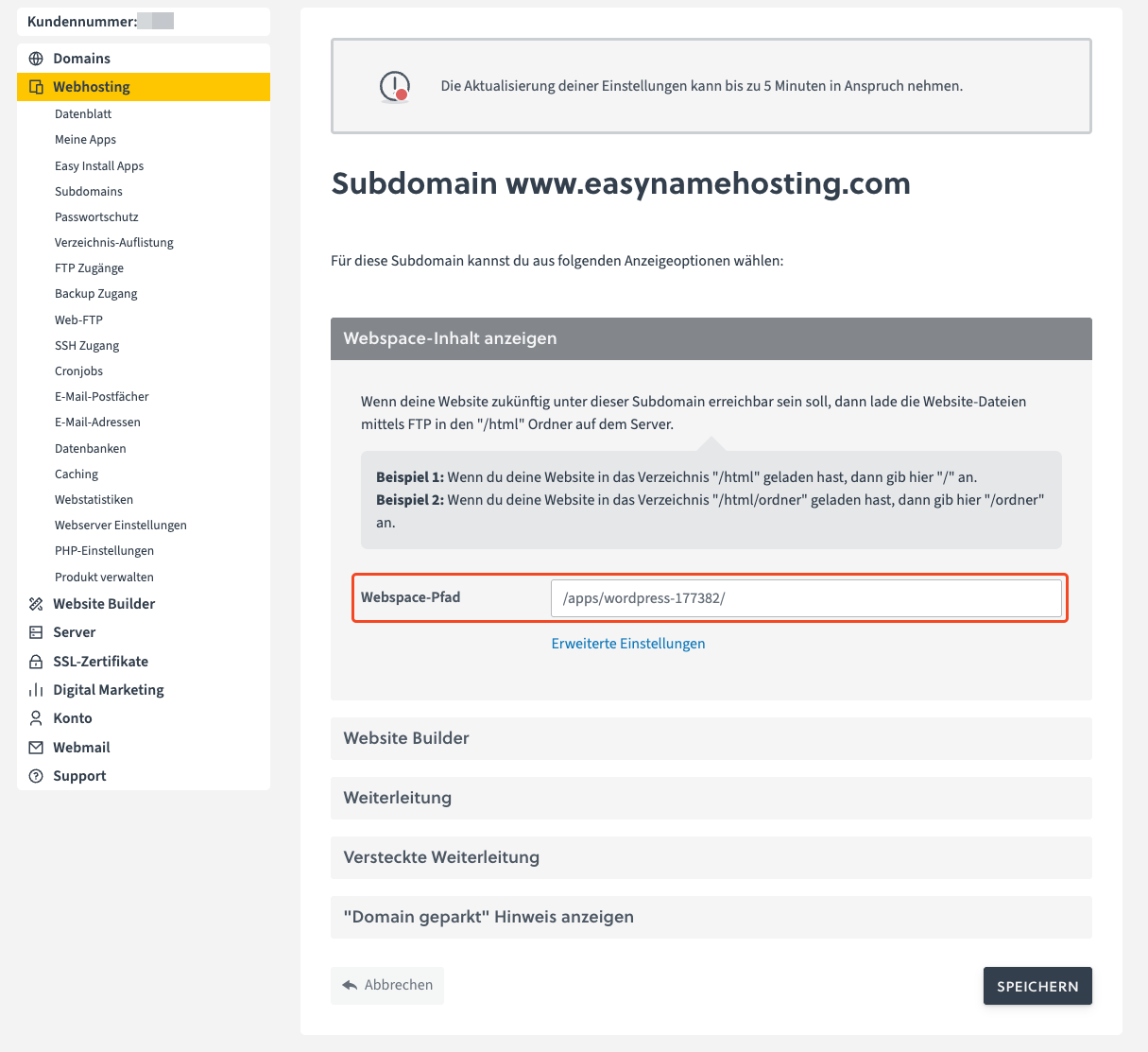
Save the change.
The change can take up to 5 minutes.
Only after this can WordPress be loaded under the new domain.
Change WordPress system URL in the database
In this step, you change the WordPress system URL. This causes WordPress to start under the new domain.
Open phpMyAdmin
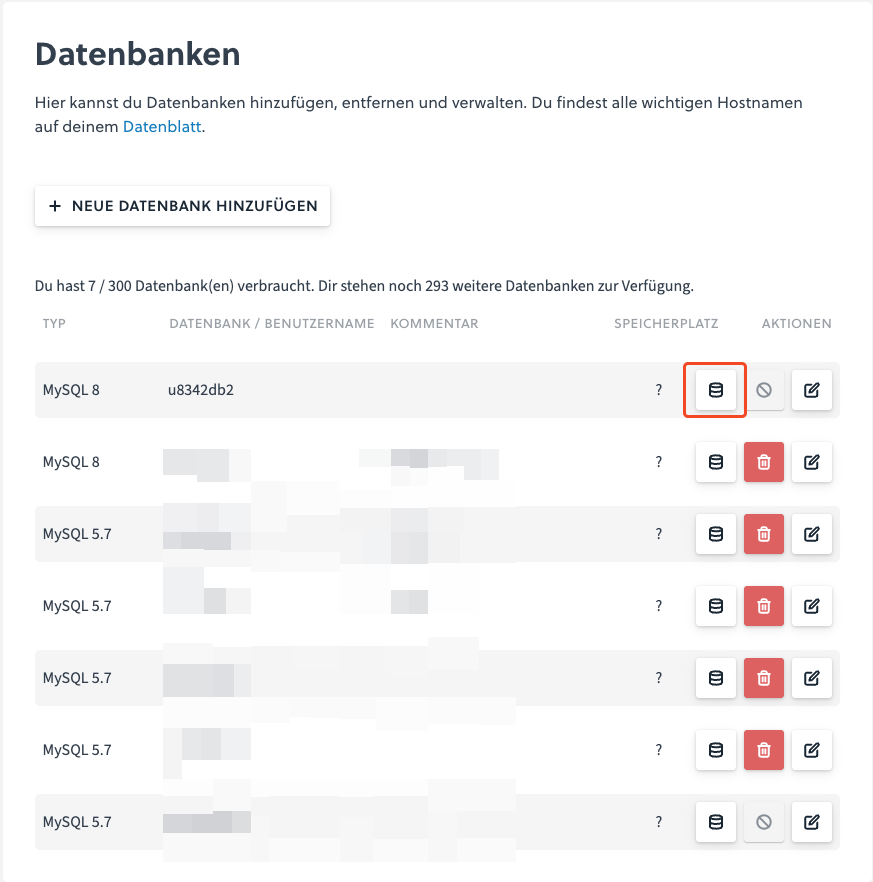
Log in to your customer account and open Webhosting → Databases.
Click on Open phpMyAdmin for this database for the desired database.
You can find the database user and database password in the wp-config.php of your WordPress installation.
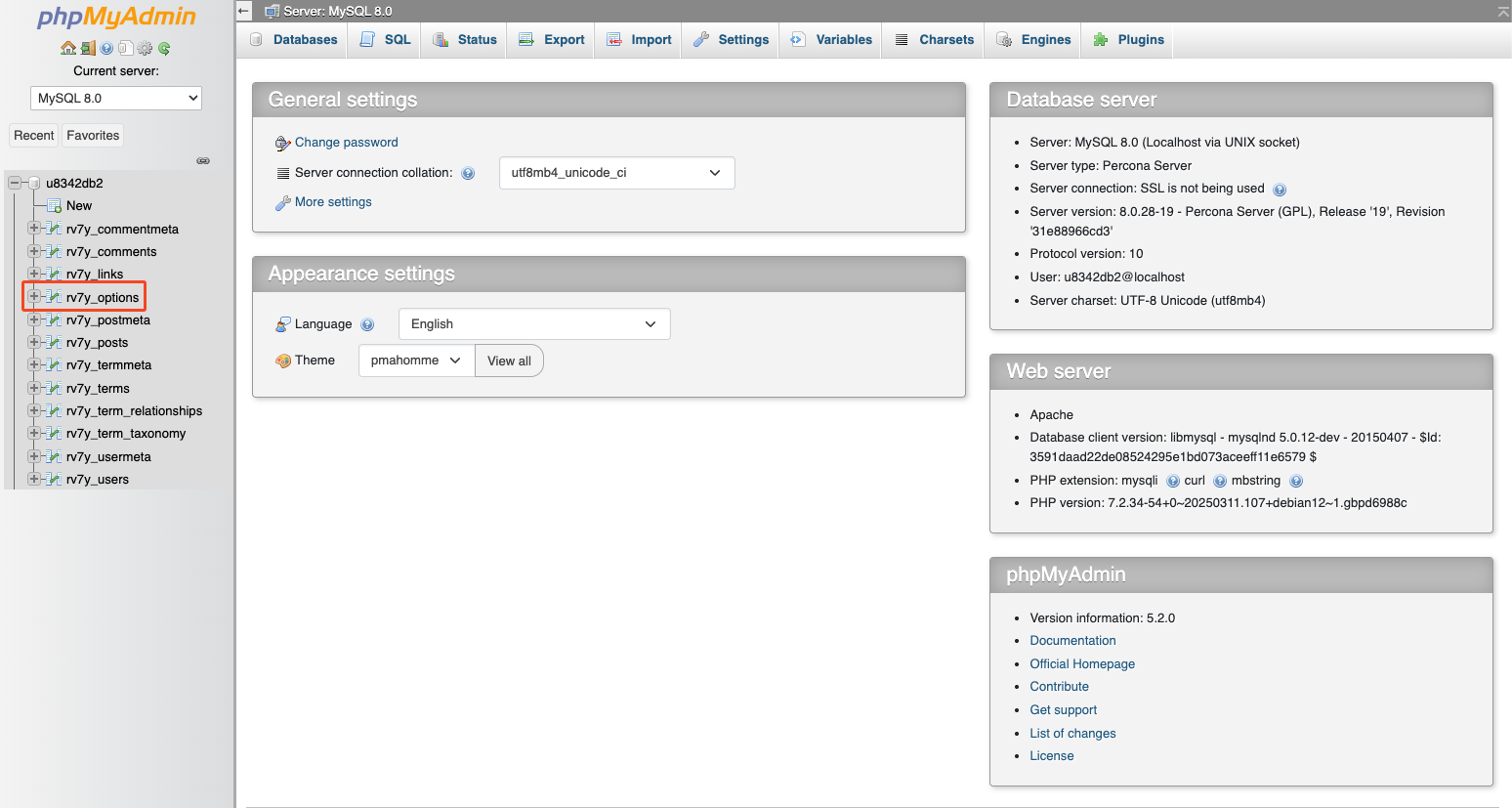
Open table wp_options
In phpMyAdmin, open the table wp_options.
The table name may have a different prefix depending on the installation. In the example, the prefix is rv7y_.
Find siteurl and home
Search in the table for the entries:
siteurlhome
These values currently still point to the old domain:
https://www.easytest.at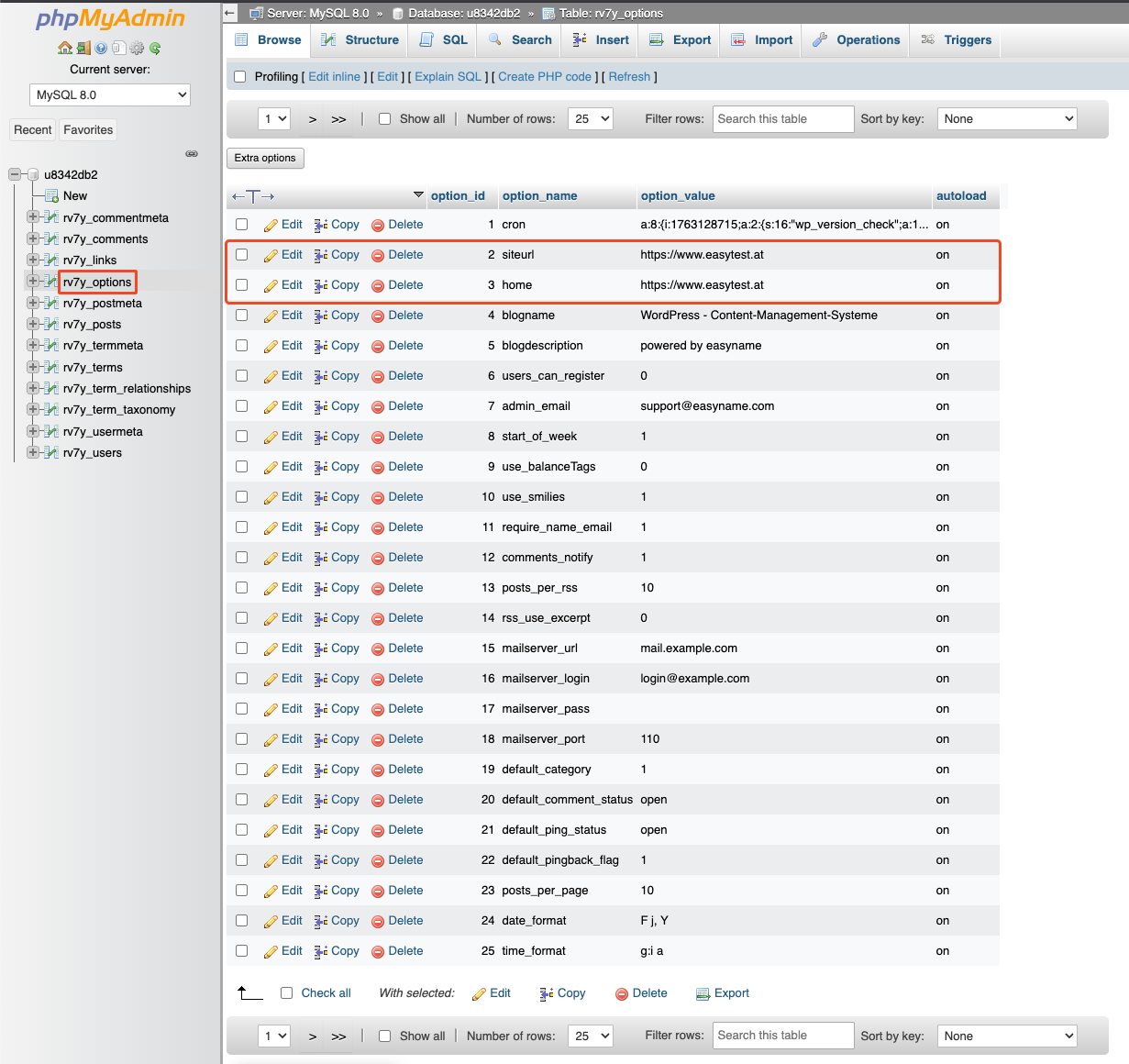
Edit values
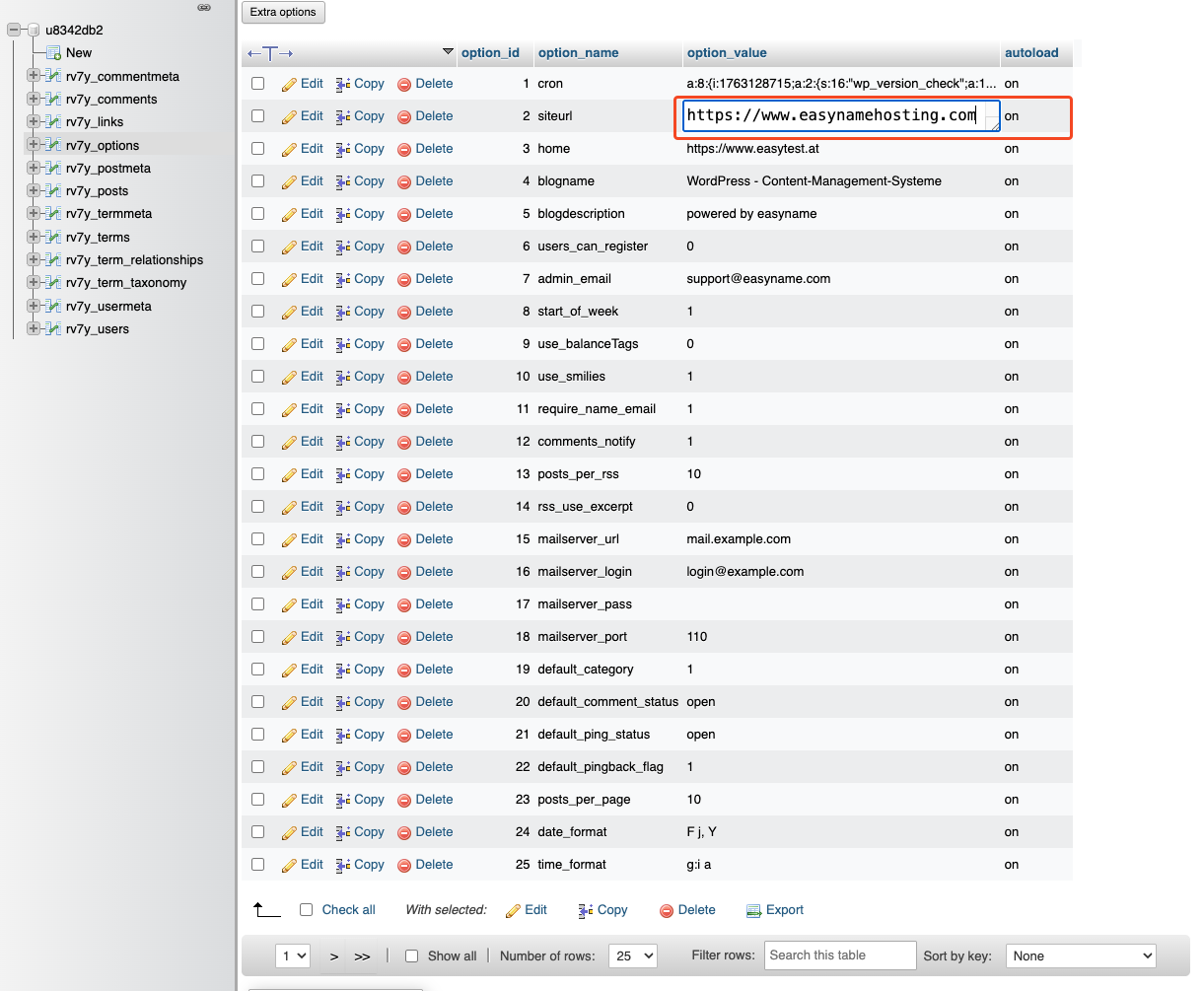
Click the Edit icon for the siteurl entry.
Replace the old domain with the new domain:
https://www.easynamehosting.comSave the change.
Repeat the same step for the home entry.
WordPress now loads under the new domain. However, content within the website may still refer to the old domain.
Replace old domain in WordPress content
To ensure images, internal links, menus, widgets, shortcodes, page builder elements, and WooCommerce data work correctly, all occurrences of the old domain in the database must be replaced.
For this, use the plugin Better Search Replace.
Install plugin
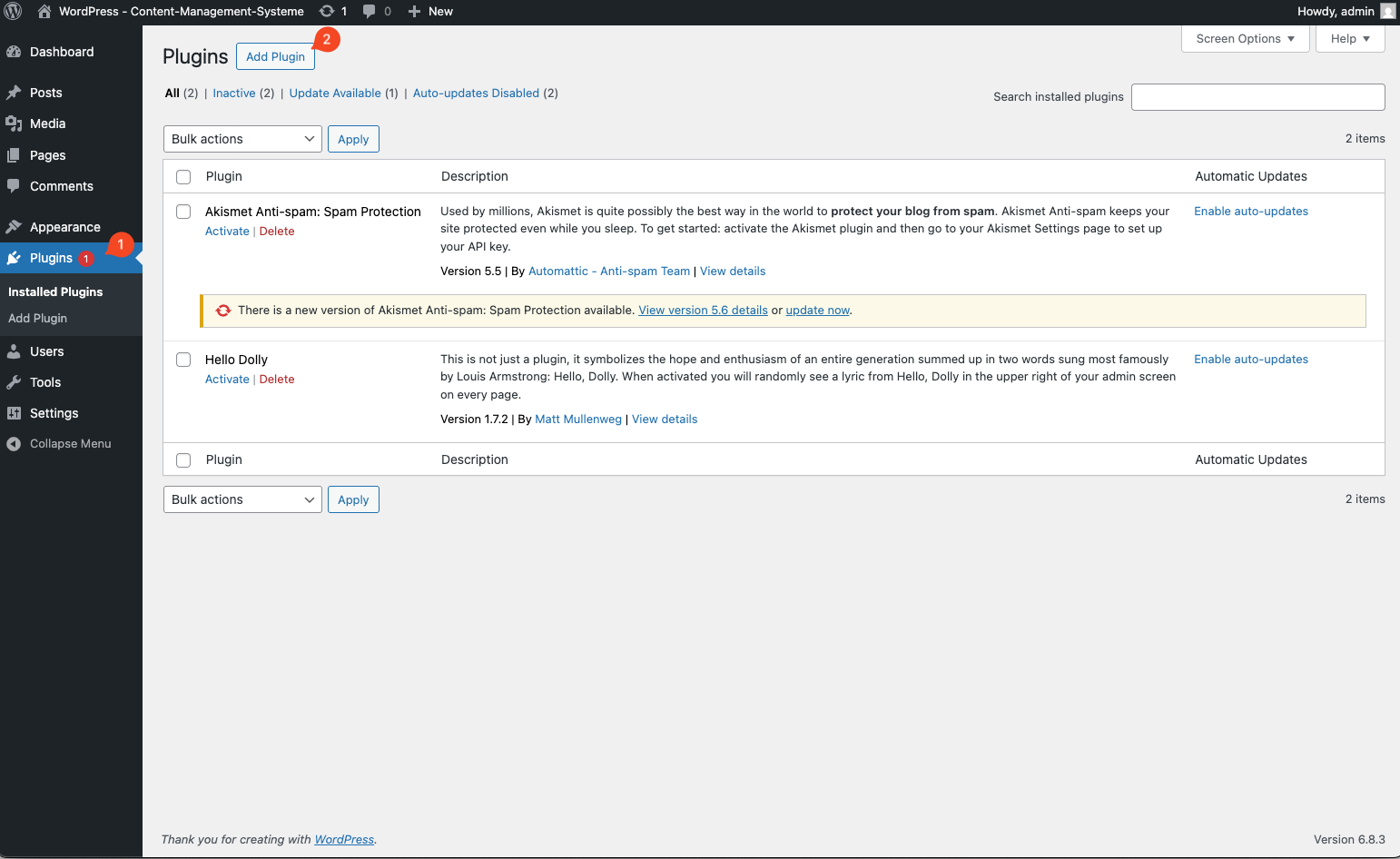
Log in to WordPress under the new domain.
Open Plugins → Add New.
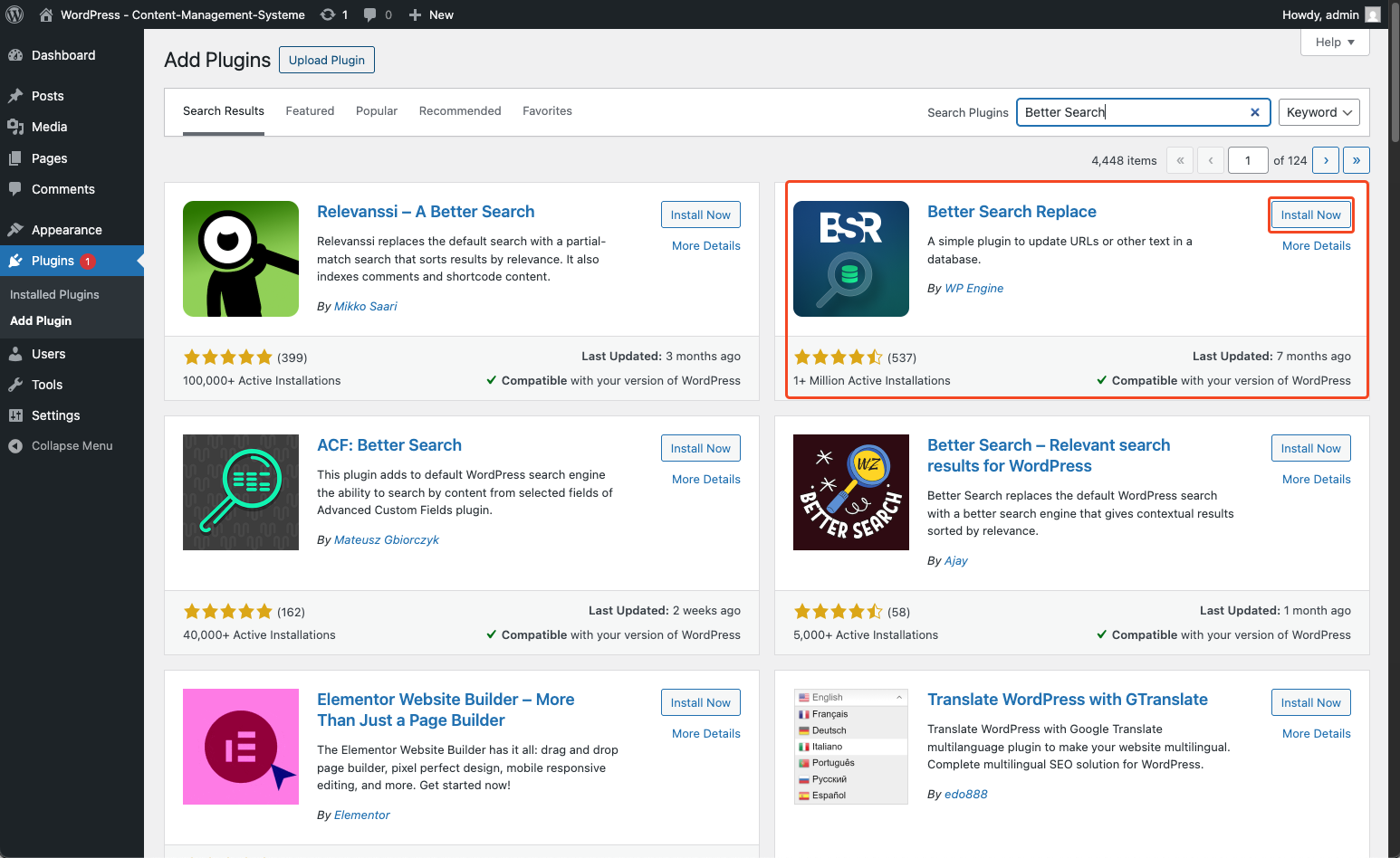
Search for Better Search Replace, click Install Now, and then click Activate.
Prepare search and replace process
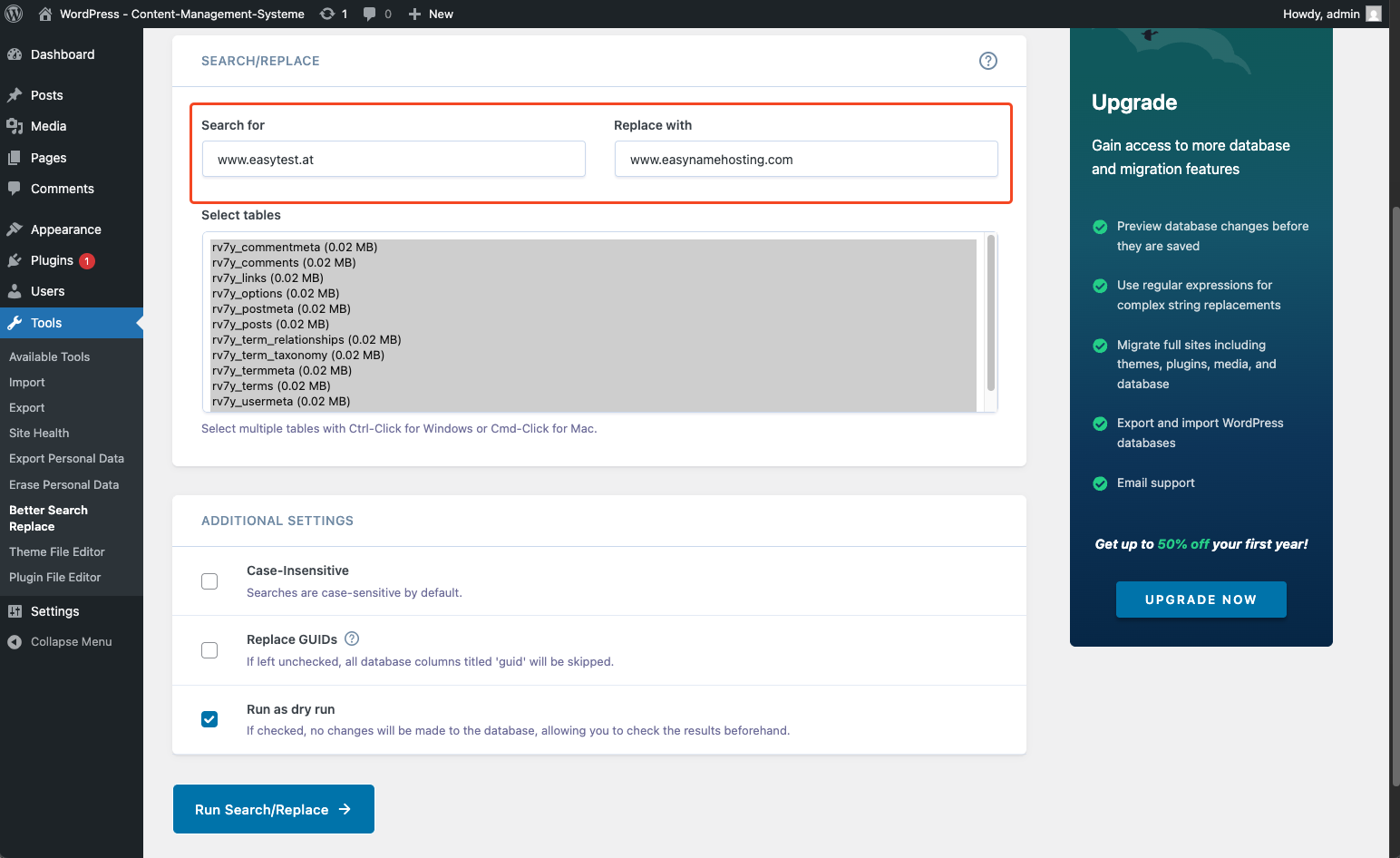
Open Tools → Better Search Replace.
Enter the old domain under Search for:
www.easytest.atEnter the new domain under Replace with:
www.easynamehosting.comSelect all tables.
First, enable Dry Run to perform a test run without making changes.
Click Run Search/Replace.
Check test run
After the test run, WordPress shows you how many replacements are possible. At this step, nothing has been changed yet.
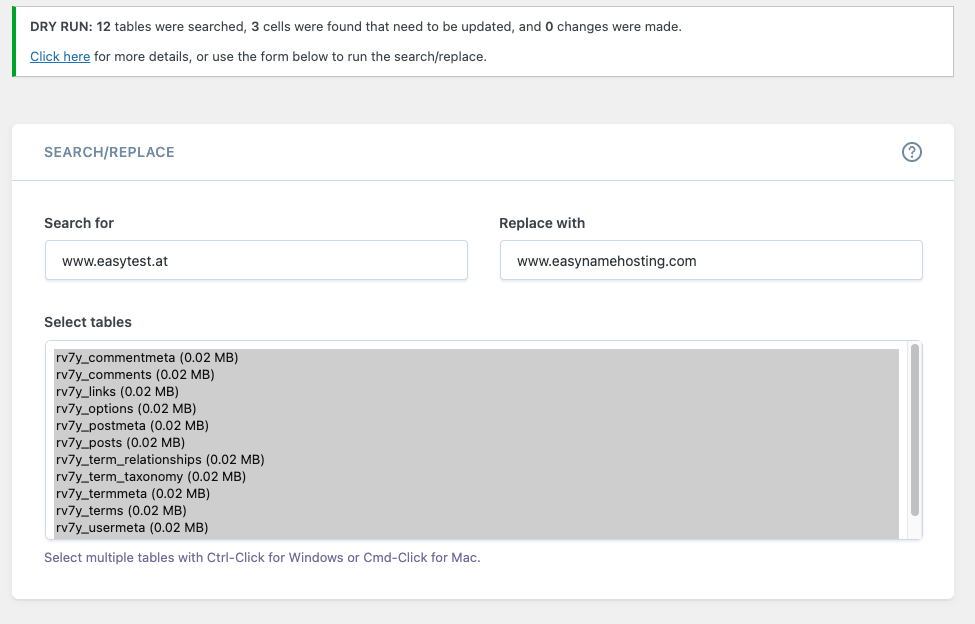
If the results look correct, uncheck Dry Run and run the process again.
Perform replacement
The process can take from a few seconds to several minutes depending on the size of the website.
Afterwards, the following content should work correctly again:
- Images
- Internal links
- Menus
- Widgets
- Page builder elements
- WooCommerce data
Common errors and solutions
Redirect loops
Check whether siteurl and home are set correctly. Then clear the WordPress cache and browser cache.
Images missing
Run the search and replace process again. Make sure the old domain is entered exactly correctly.
Mixed content with http/https
If content is still loaded via http, additionally replace the full old URL:
http://www.easytest.atwith:
https://www.easynamehosting.comPage builder layout is broken
Use Better Search Replace again. Do not replace the domain manually directly in the database, as page builders may store serialized data.
Result
The domain change is complete when:
- the new domain points to the WordPress directory
-
siteurlandhomepoint to the new domain - old domain entries in WordPress content have been replaced
- images, menus, links, and page builder content work correctly