How can I secure my domain with SSL?
How can I secure my domain with SSL?
You can secure your domain at easyname with an SSL certificate so that your website is accessible via HTTPS. For web hosting packages, free Let's Encrypt certificates are available; in the CloudPit, depending on availability, a paid login SSL certificate can also be selected.
Requirements for Let's Encrypt
Let's Encrypt certificates are available with a paid easyname web hosting package.
Activate SSL Certificate in CloudPit
- Log in to the CloudPit.
- In the overview of your web hosting and domain contracts, find the domain you want to secure with SSL.
-
Click on the lock icon for the desired domain.
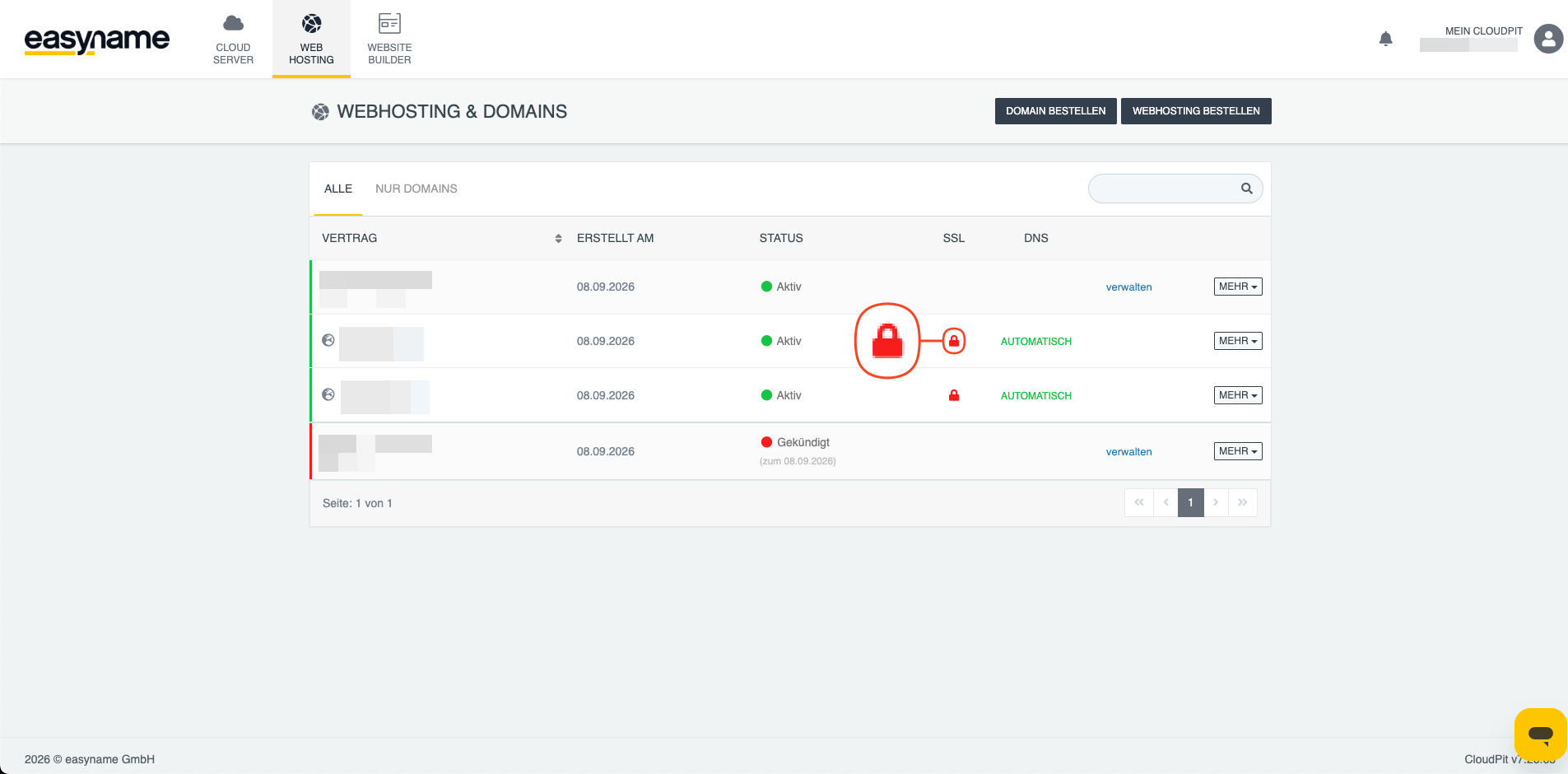
-
Select the desired SSL certificate. Depending on availability, you can choose between a free Let's Encrypt certificate (1) and a paid Login SSL certificate (2).
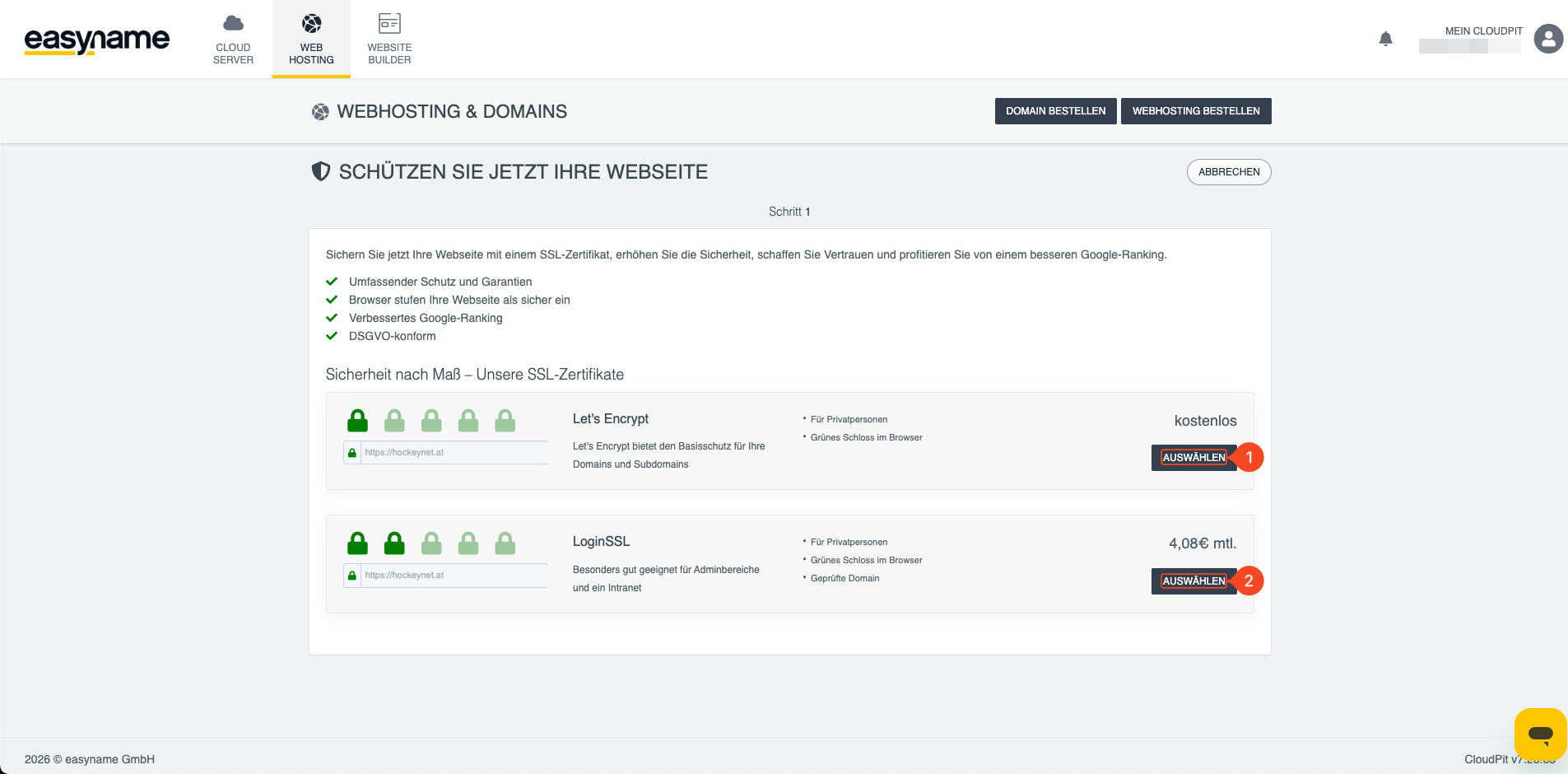
- Confirm your selection to activate the certificate for the domain.
Activation can take up to 5 minutes. After successful activation, the SSL certificate is active for the selected domain. Renewal happens automatically.
Activate Let's Encrypt in the Control Panel
- Log in to the easyname Control Panel.
-
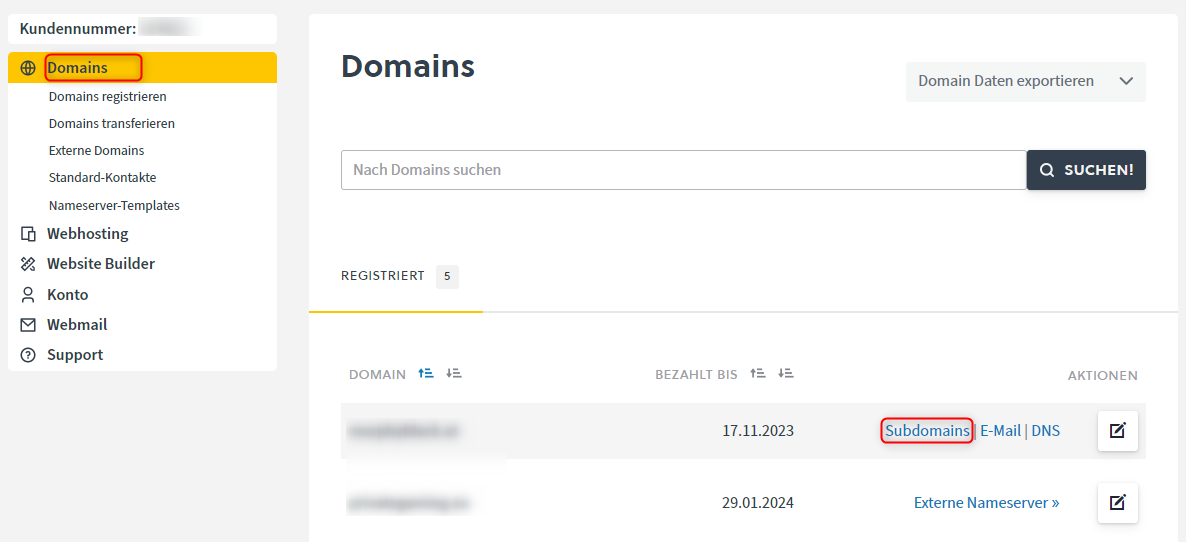
Either open Domains and click on Subdomains for the desired domain, or open Webhosting → Subdomains.
- Click the gray HTTP button for the desired subdomain.
- In the opened HTTPS menu, activate the Let's Encrypt SSL certificate using the toggle switch.
-
Optionally, you can also enable automatic redirection from HTTP to HTTPS.
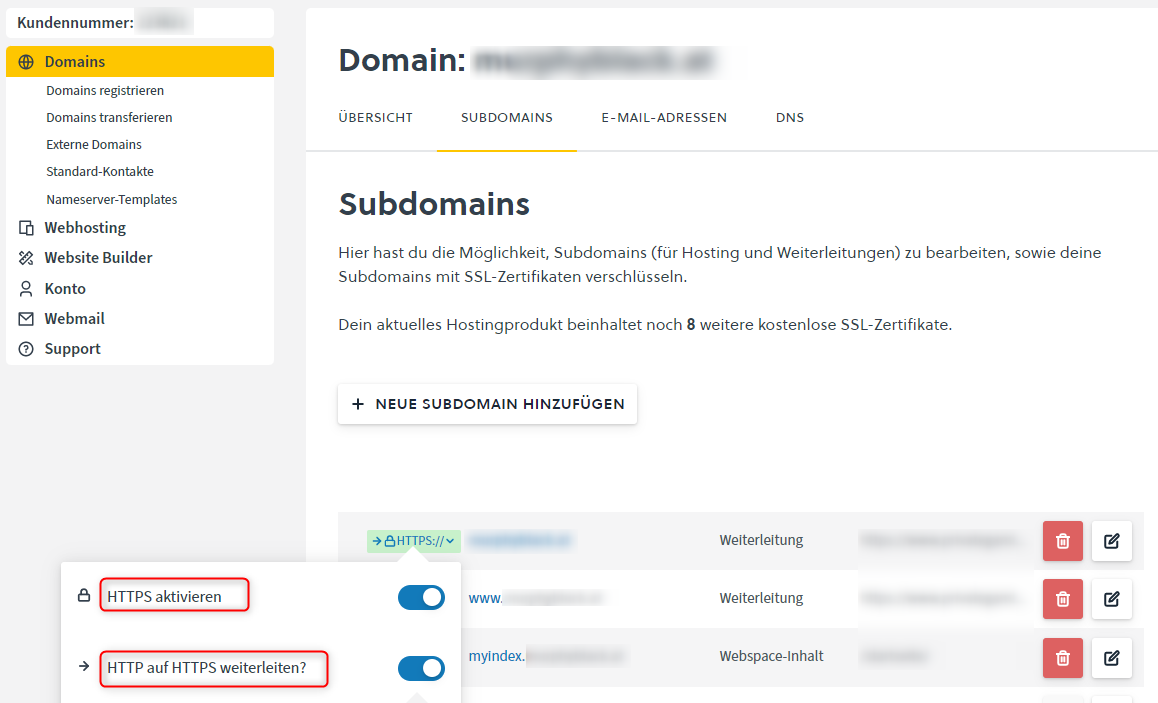
- Save the changes.
If you enable automatic redirection from HTTP to HTTPS, you can choose between the following redirect types:
- HTTP 301: Moved Permanently
- HTTP 302: Found / Moved Temporarily
- HTTP 307: Temporary Redirect
- HTTP 308: Permanent Redirect
For a permanent redirect from HTTP to HTTPS, use 301 or 308. Use 302 or 307 for a temporary redirect.
Activation of the certificate can take up to 5 minutes. After completion, the SSL certificate is active for the selected subdomain. Renewal happens automatically.
Check SSL Certificate
After activation, access your website using https://. If the browser does not display a certificate warning, the SSL certificate has been successfully installed.