How can I display the content of my webspace under my domain?
To link the domain with your website, you first need to upload your website with all files and folders to our web server. Depending on whether you manage your website in CloudPit or in the Control Panel, the process differs slightly.
This guide outlines both methods. How to obtain the connection data for your FTP user can be found in these articles:
Table of Contents
1. I manage my domains in CloudPit
2. I manage my domains in the Controlpanel
1. I manage my domains in CloudPit
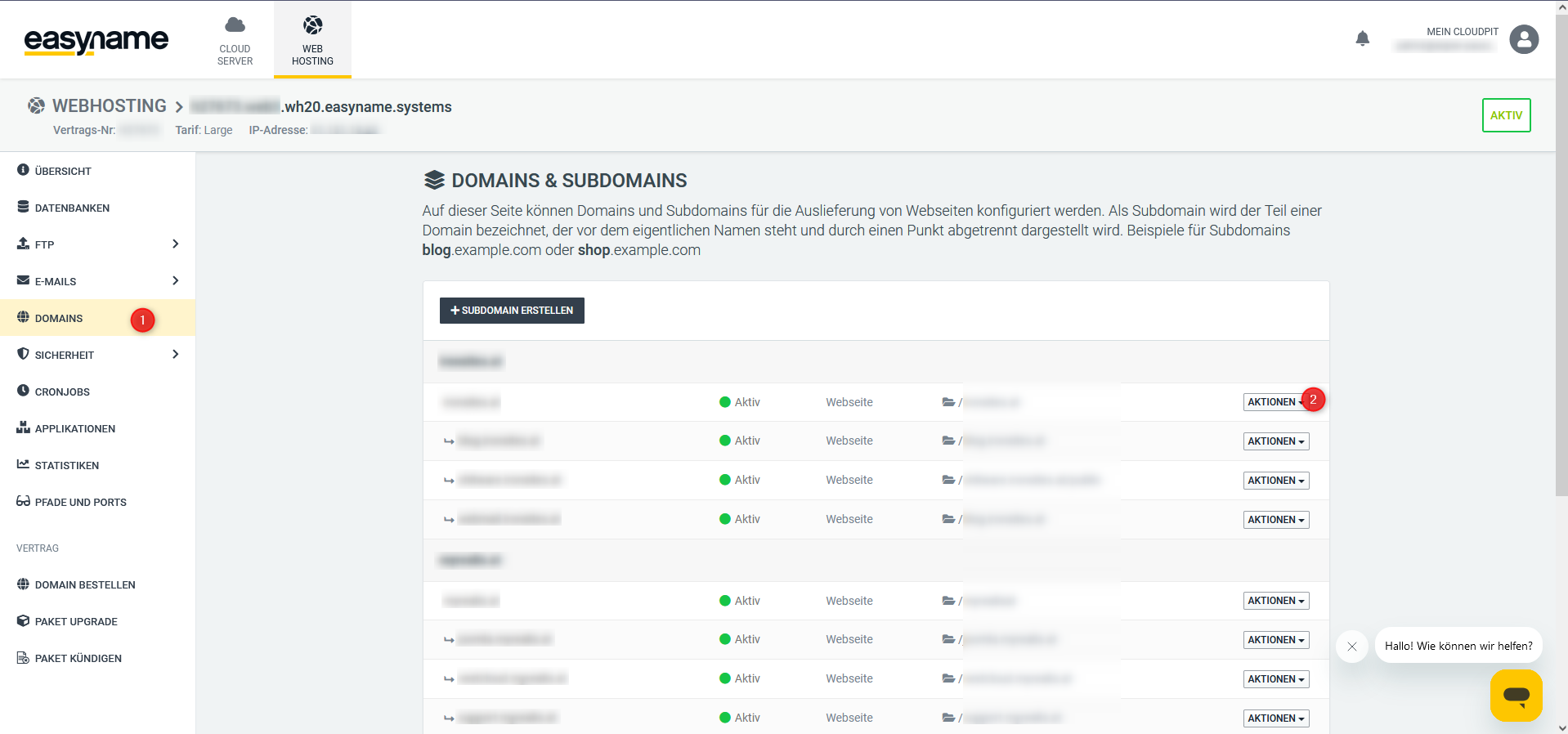
If you manage your domains in CloudPit, you must first navigate to the web hosting management interface and click on the menu item [DOMAINS]. There, next to the desired (sub)domain, click on the button [ACTIONS].
After you have uploaded your website to our webspace, you can then point the subdomain to it using the option [Show webspace content]. Please ensure that you enter the full path.
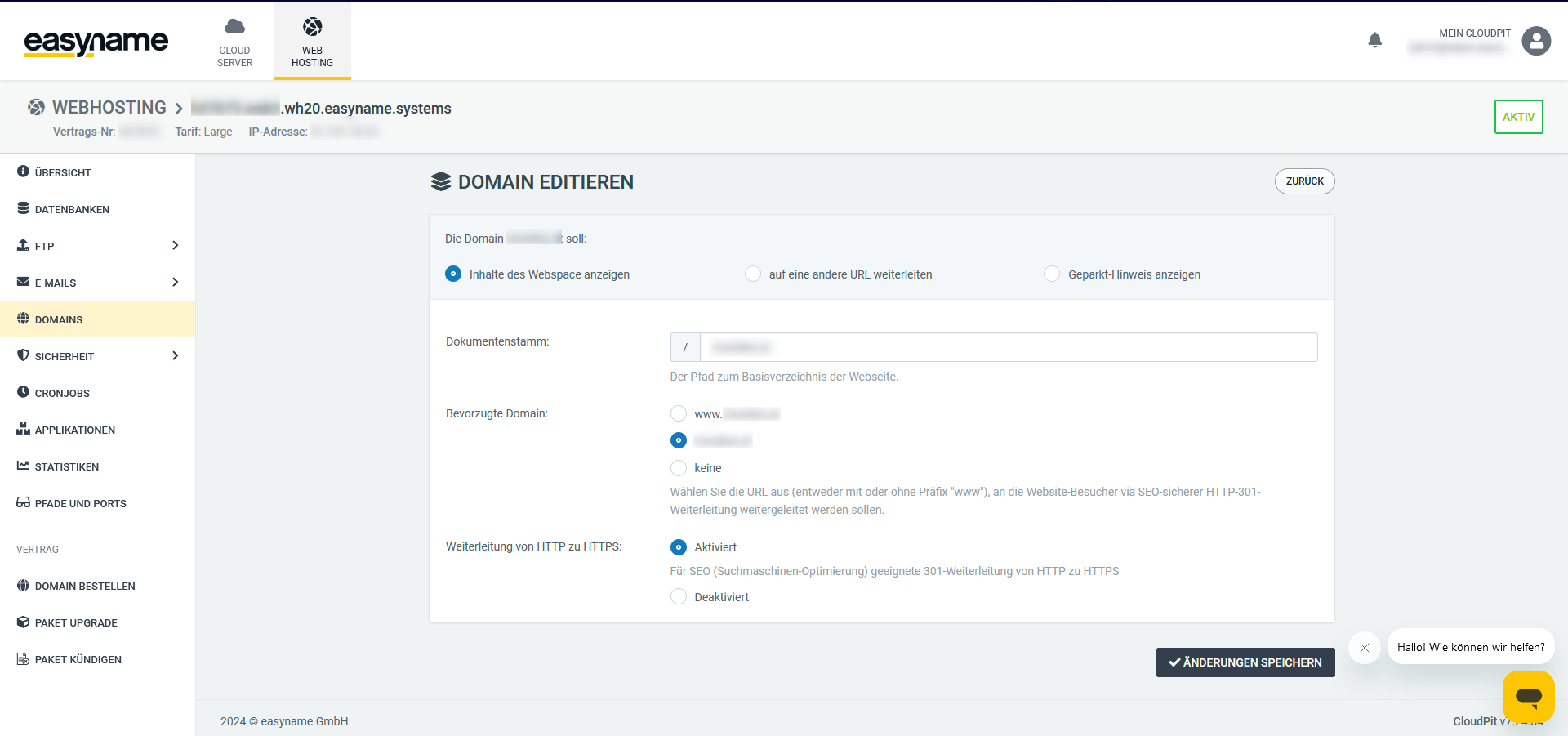
Additionally, you can select the preferred domain here, which is especially useful for apex domain content. This causes the web server to automatically deliver either the apex domain, the www subdomain, or the (sub)domain as is, to visitors.
Finally, you can automatically redirect website requests from the unencrypted HTTP version to the encrypted HTTPS version. This type of redirect is advisable for better search engine ranking, builds visitor trust in the website's credibility, and should generally be enabled.
2. I manage my domains in the Controlpanel
After uploading all data, go in the Controlpanel to [Domains] and then to [Subdomains].
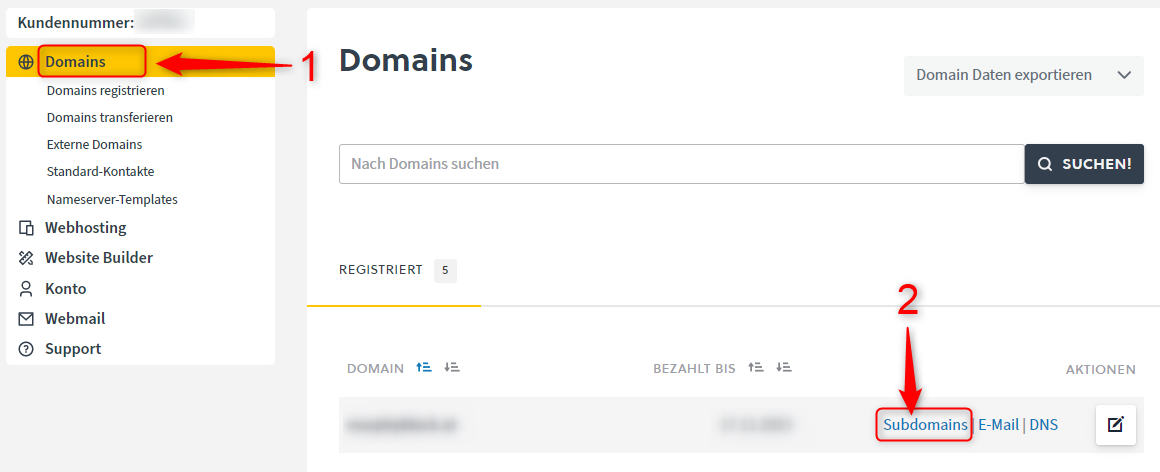
Here, you can click the black pencil icon on the right for an existing subdomain.
You can also create and manage a new one using the top button [+ Add new subdomain].
Now you are in the management area. Here you can select what happens with the subdomain. For this case, choose at the top [Show webspace content].

It is important here to specify the correct path for the webspace. The root directory for this is the html folder. Thus, you can access all data within the html folder.
Please also note that the change can take up to 5 minutes to be applied correctly.