CloudPit - DNS Management
DNS Management in CloudPit
When do you need this function?
You need to adjust DNS records if:
Your website should point to an external server
Your emails are not working correctly
An external provider requires domain verification
You want to set up a subdomain
Important: DNS changes are only possible if your domain's nameservers are set to easyname.
Step-by-step: Add a DNS record
Log in to CloudPit
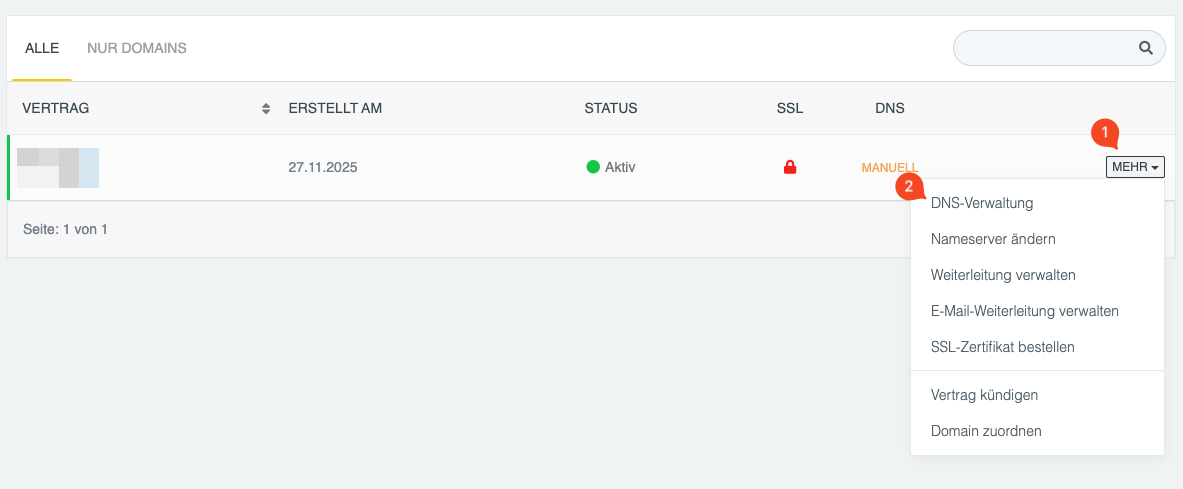
Next to the desired domain, click MORE (1) and then DNS Management (2)
If DNS management is still automatic, select manual management for individual DNS records (3)
Click on “+ Add record”
Select the desired record type
Enter the required values
Save the change
Changes are usually active within a few minutes. Worldwide propagation can take up to 24 hours.

Special Feature in CloudPit: “Name” Field
In the Name field, only the subdomain is entered.
The system automatically adds the main domain.
Example:
You want to set an A record for
www.easyname.at.
In the Name field, enter:
www
Do not enter:
If the full domain is entered, technically it becomes:
The entry will then not work.
Main Domain (without www)
If you want to set a record directly for the main domain (e.g., easyname.at),
leave the Name field empty or use “@”.
The Most Common Use Cases
Point website to an external server (A record)
Type: A
Name: www
Value: IP address of the server (e.g., 203.0.113.10)
For the main domain:
Name: empty or @
Value: IP address
Set up an external email provider (MX record)
Type: MX
Name: empty or @
Value: Mail server address of the provider
Priority: as specified
Existing MX records should be checked and removed if necessary.
Domain verification (TXT record)
Type: TXT
Name: as specified (e.g., @ or _acme-challenge)
Value: code provided by the provider
Point subdomain to another address (CNAME)
Type: CNAME
Name: e.g., blog
Value: target address (e.g., targetaddress.example.com)
Typical Sources of Error
Nameservers are not set to easyname
Full domain entered in the “Name” field
Incorrect record type selected
Old entries not removed
TTL has not yet expired
MX priority set incorrectly
How long do DNS changes take?
Usually visible in the system immediately
Worldwide propagation: up to 24 hours