How can I transfer my website to easyname?
If you are currently hosting your website locally or with another provider and want to transfer it to new web hosting with us, there are a few things you will need in advance.
Table of Contents
0. Basic Requirements
- Customer account -->How can I register with easyname?
- Active web hosting contract -->How can I order web hosting?
- Website including all necessary components, ideally packed into a .zip or .tar file.
- Web content (graphics, html, php, etc. files)
- if applicable, database (sql file)
- Domain
Once all these points are prepared, you can proceed to transfer the website to your new web space.
This can basically be done in two different ways.
- via (s)FTP Upload
- via SSH Connection
Below, it is explained in detail how this works and what you should pay attention to.
1. Transfer via (s)FTP Upload
For this option, you must first download the data to be transferred to your PC and then upload it to your new web space.
For uploading to the web space, you need the access data, which you can obtain as described here. --> How do I manage FTP users?
The following article describes in detail how the FTP upload works. --> How can I upload files to my web space?
If you want to upload your data via a secure sFTP connection, you must use the SSH user instead of the normal FTP user. In CloudPit this is identical to the primary FTP user, while in the legacy Control Panel this is a separate user. --> Create article
Please note that in the legacy Control Panel the SSH port mentioned in the panel must be used.
2. Transfer via SSH
explain, screenshots
$ rsync [OPTION] /path/to/website [SSH username at easyname]@Webserver:/path/to/website
3. Database Upload
This step is only necessary if your website requires a MySQL database to operate. This is especially the case with ready-made CMS solutions like WordPress, Joomla, typo3, but also with shop systems like Prestashop or Shopware.
If you want to transfer such a website to us, you will definitely need the corresponding database from your previous provider. This database file usually comes as a .sql file, sometimes also in zipped form.
Please note that when importing into a MySQL database, only backups from another MySQL database are supported, not backups from, for example, PostgreSQL or MongoDB. You can read which database types we support in web hosting here: Which databases are supported?
You can then upload the database in two ways:
- by uploading in phpMyAdmin
- via
mysqlcommand over SSH
For both options, the database must already be created beforehand. How to do this is described in this article: -->How can I create a new database?
Both options are briefly described below.
3.1 How do I upload an SQL file via phpMyAdmin?
First, you need to log in to phpMyAdmin - you will need the username and password for this. If you no longer remember them, you can retrieve or reset them as described here. Where can I find my MySQL access data?
Once you are logged in to phpMyAdmin, you can start the upload of the .sql file. However, before doing so, you must select the database into which the .sql file should be uploaded. If you do not do this, the upload will fail.
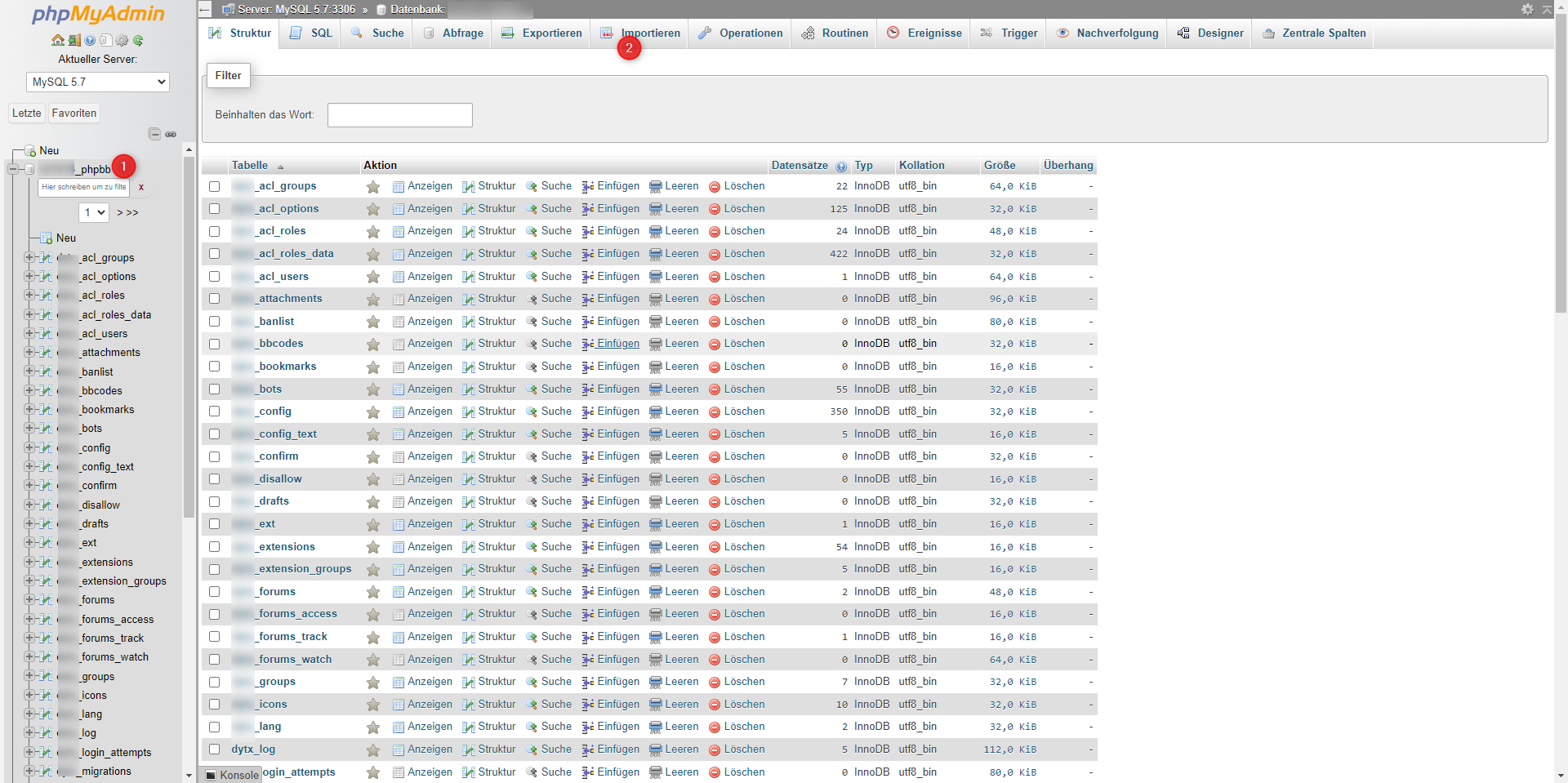
Then click on the [Import] button in the top menu bar.
In the import menu, select the desired file for upload and click the [Import] button at the end of this page.
If everything worked, after the database import is complete, you will see several tables listed under the database on the left side, as shown in the screenshot.
If an error occurs, copy it and contact us.
3.2 How do I upload an SQL file via SSH?
Alternatively, the .sql file can also be uploaded via SSH. This is especially helpful if the file is larger, as HTTP upload via phpMyAdmin can sometimes lead to connection interruptions or timeouts.
You can either upload the .sql file to the web space in advance or transfer it to your new web hosting using an SCP command. If your old web hosting is also based on Linux, the syntax is as follows:
scp /path/to/dump.sql username@web#.wh20.easyname.systems:/target/directory/
If you want to transfer the file via SCP from a Windows host, the syntax is as follows:
scp C:\Path\to\dump.sql username@web#.wh20.easyname.systems:/target/directory/
Depending on which type of database is to be uploaded, the command needs to be adjusted slightly.
In the case of a MySQL 5.7 database, the SSH command looks like this.
mysql -u username -p -h localhost databasename < /path/to/dump.sql
username and databasename must be adjusted according to the parameters in your hosting, as well as the path to the .sql file. If you run the command in the directory where the .sql file is located, you can even omit the path.
If you want to import the database backup into a MySQL 8 database, you must add the port to the command:
mysql -u username -p -h localhost -P 3307 databasename < /path/to/dump.sql